In short: These are the IMAP and SMTP settings for your ÇAP Hosting mailbox: in Outlook, iPhone or Android, use mail.caphosting.net as the incoming server (IMAP, port 993, SSL/TLS) and mail.caphosting.net as the outgoing server (SMTP, port 465 SSL/TLS or 587 STARTTLS). Your username is your full email address and the password is the one you set when you created the mailbox.
If you haven't created a mailbox yet, follow our guide to creating an email account in CWP first. Then keep these details at hand:
| Setting | Value |
|---|---|
| Username | Your full email address (e.g. [email protected]) |
| Password | The password you set when you created the mailbox |
| Incoming mail server (IMAP, recommended) | mail.caphosting.net · Port 993 · SSL/TLS |
| Incoming mail server (POP3, alternative) | mail.caphosting.net · Port 995 · SSL/TLS |
| Outgoing mail server (SMTP) | mail.caphosting.net · Port 465 · SSL/TLS (alternative: Port 587 · STARTTLS) |
| SMTP authentication | On — same username and password as incoming mail |
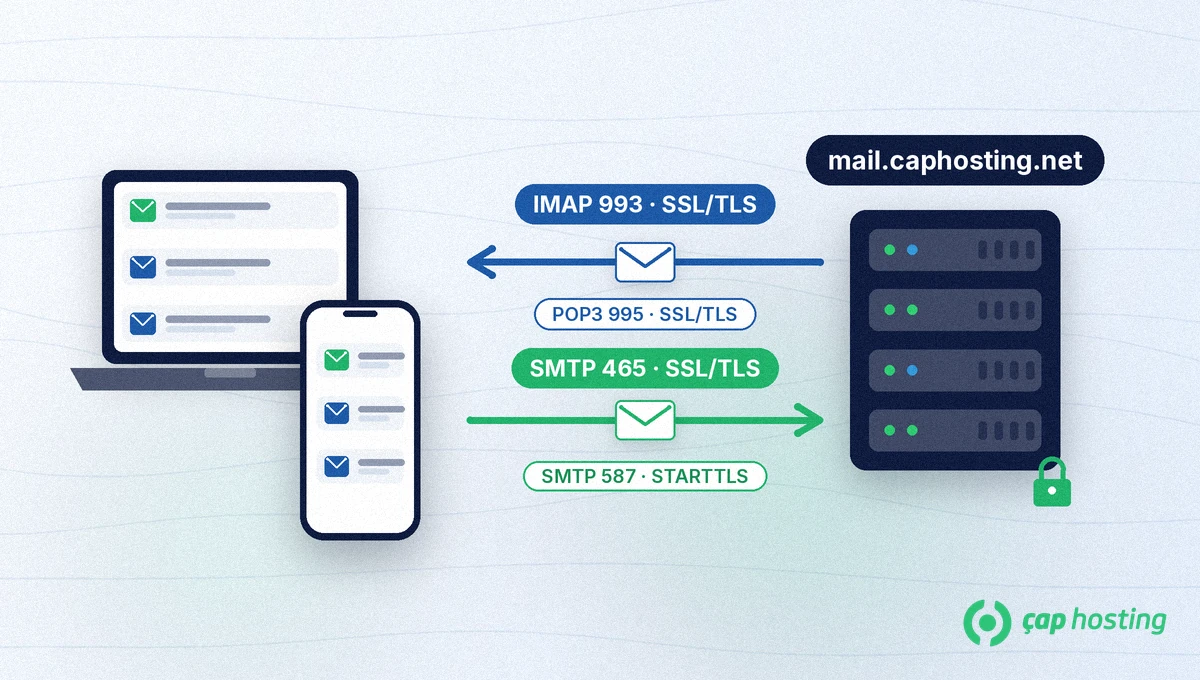
Why mail.caphosting.net rather than mail.yourdomain.com? The SSL certificate on our mail server is issued for mail.caphosting.net. Using that name as the server keeps the connection encrypted and avoids "certificate not trusted" warnings. If your welcome email lists a different server name, use that one instead.
IMAP keeps your mail on the server and syncs every device: a message you read on your phone also shows as read on your computer. Choose IMAP if you use the same mailbox on more than one device. POP3 downloads messages to a single device; depending on the client's settings they may be removed from the server and won't appear elsewhere. If you do use POP3, pick port 995 with SSL/TLS.
New Outlook:
Classic Outlook:
mail.caphosting.net, 993, SSL/TLS for incoming mail and mail.caphosting.net, 465, SSL/TLS for outgoing mail, then select Next.mail.caphosting.net as the host name, your full email address as the username, and your password.The menu names follow Apple's guide to adding an email account to iPhone; older iOS versions may label them slightly differently.
mail.caphosting.net, port 993, SSL/TLS; for the outgoing server enter mail.caphosting.net, port 465, SSL/TLS, then follow the on-screen steps.Other apps such as Samsung Email use different menu names, but the values you enter are the same.
mail.caphosting.net and that encryption is set to SSL/TLS (for 465) or STARTTLS (for 587).Depending on your plan you can create between 5 and 100 mailboxes — compare them on our web hosting plans page, and if you get stuck on any step, contact our support team.
Your username is your full email address (for example [email protected]). The password is the one you set when you created the mailbox in CWP.
Use IMAP (mail.caphosting.net, port 993, SSL/TLS) if you read mail on more than one device. POP3 (port 995) downloads messages to a single device and doesn't sync them across devices.
Use port 465 with SSL/TLS first. If your network blocks it, try port 587 with STARTTLS; either way, SMTP authentication must be turned on.
Yes. With IMAP on every device, messages stay on the server and read or deleted status syncs everywhere.
 Copyright © 2026 All Rights Reserved

 Turkey (Türkçe)
 Worldwide (English)