In short: An SPF record is a DNS TXT record that starts with "v=spf1" and lists the servers allowed to send email on behalf of your domain. The receiving mail server looks up this record and checks whether the server that sent the message is on the list. To create an SPF record, find out which servers send your email, combine them into a single TXT record, add it in your domain's DNS management and check it once it has propagated.
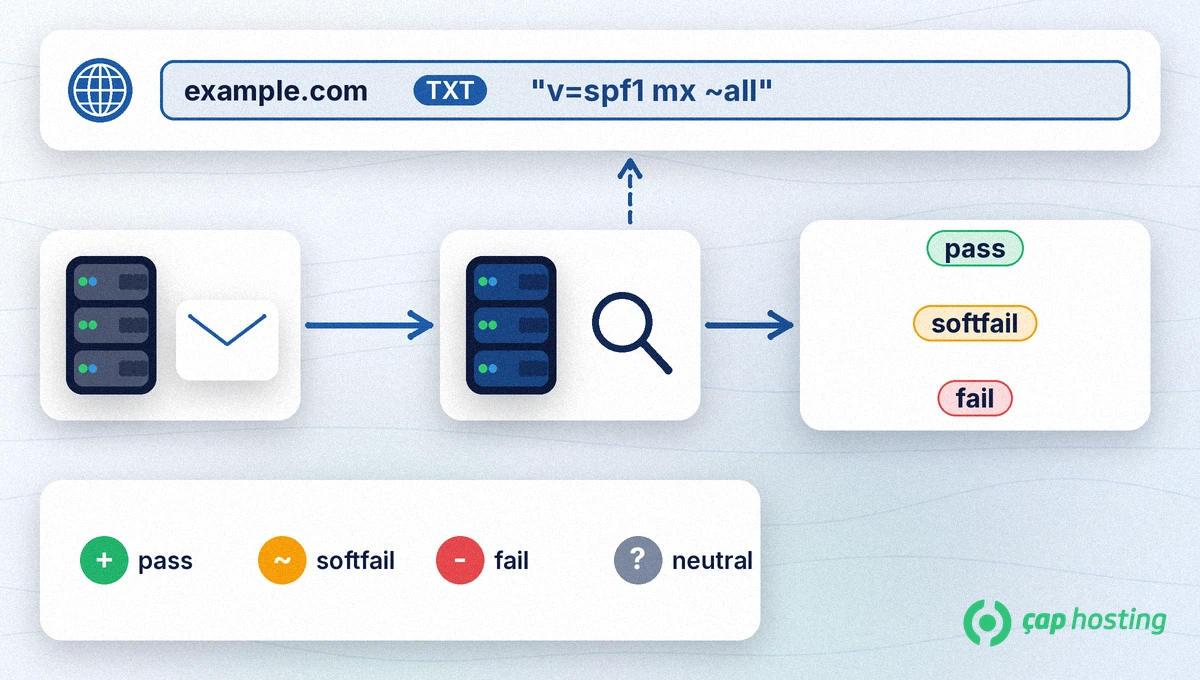
SPF (Sender Policy Framework) lets a domain publish through DNS which servers may send email for it (RFC 7208). The receiving server reads the SPF record of the envelope sender (MAIL FROM) domain and compares the IP address of the connecting server with it. The result can be pass, fail, softfail or neutral. For what a TXT record is in general, see DNS records (A, MX, CNAME, TXT) explained.
Before you write the record, list everything that sends email with your domain: the mail server in your hosting account, business email services such as Google Workspace or Microsoft 365, form notifications from your website, and newsletter or invoicing services. A sender you forget can have its messages rejected or sent to spam once the SPF record goes live.
Your domain may already have an SPF record. You can see its TXT records in a terminal with:
dig +short TXT caphosting.net
On 16 November 2026 the SPF record returned for caphosting.net was:
"v=spf1 ip4:38.3.138.185 a mx ~all"
On Windows you can use nslookup -type=TXT yourdomain.com. Both commands are explained in DNS checks with dig and nslookup. If a record exists, do not add a new one; edit the existing record instead, because more than one SPF record on a domain causes an error (permerror).
The record always starts with v=spf1 and ends with all. The main mechanisms in between are:
ip4: / ip6: allow a specific IP address or range.a allows the address in the domain's A/AAAA record; mx allows the domain's MX servers.include: pulls in another domain's SPF record. Google Workspace uses include:_spf.google.com (Google) and Microsoft 365 uses include:spf.protection.outlook.com (Microsoft).~all asks for softfail for servers not on the list, -all asks for fail. The qualifiers are + pass, ~ softfail, - fail and ? neutral.For example, if you only send email through the server named in your MX record, the record can be v=spf1 mx ~all. If you also use Google Workspace, combine them as v=spf1 mx include:_spf.google.com ~all. If you are not sure which server sends your mail, open a support ticket and confirm before you publish the record.
The change can take time to appear depending on the record's TTL (DNS propagation). Then run the dig command again and send a test message to a Gmail address of your own. Open the message in Gmail, choose "Show original" and check that the SPF line says PASS. SPF is not enough on its own; it works together with DKIM and DMARC. If your messages still land in spam, read why are my emails going to spam.
If you are not sure that every sender is listed, starting with ~all is less risky. Once the list is complete, -all makes receivers reject unauthorised senders more clearly.
No. More than one SPF record on a domain makes the SPF check fail with an error. Combine all senders in a single record.
Once the record has propagated in DNS. The time depends on the record's TTL and on resolver caches.
Not necessarily. SPF is evaluated together with DKIM and DMARC, and content and sending habits also affect spam decisions.
 Copyright © 2026 All Rights Reserved

 Turkey (Türkçe)
 Worldwide (English)