In short: An email quota is the maximum storage a mailbox may use on the mail server. When the quota is full, incoming messages are not accepted: the sending server either retries for a while or returns the message with a "mailbox full" error. Copies of the messages you send may also fail to save in your Sent folder. To fix it, clear out messages with large attachments, empty the trash and archive the old mail you need to keep.
When a customer tells you "the email I sent you bounced", a full mailbox is one of the first things to check. In this article we explain what an email quota is, what happens behind the scenes when a mailbox fills up, what takes up the space and how to free it safely.
On business email accounts, every mailbox has a limit on how much space it may take up on the server. That limit is called the email quota or mailbox quota. It covers every folder stored on the server, not just the Inbox: Sent, Drafts, Trash, Spam and any folders you create. The quota is set when the account is created; for example, you can set the mailbox quota when creating an email account in CWP.
A quota shares the server's storage fairly between accounts and stops a single mailbox from affecting the others. Raising the quota is an option, but the lasting fix is keeping the mailbox tidy.
When a server tries to deliver a message to you, it learns that your mailbox is full and receives an error code. RFC 5321 defines two replies for this situation:
| Code | Meaning | What the sender experiences |
|---|---|---|
| 452 | Requested action not taken: insufficient system storage | A temporary error. The sending server keeps the message in its queue and tries again later. |
| 552 | Requested mail action aborted: exceeded storage allocation | A permanent error. The sender gets a bounce message saying the email could not be delivered. |
Bounce messages usually show an extra code such as 4.2.2 or 5.2.2 next to it. RFC 3463 defines this code as "Mailbox full": the mailbox quota has been exceeded and the recipient can delete messages to make room. For temporary errors, RFC 5321 recommends that the sending server keeps the message queued, generally waits at least 30 minutes between attempts and usually keeps trying for at least 4 to 5 days before giving up. Actual timings depend on the sending server's settings.
A full quota does not only affect incoming mail. An email client that uses IMAP may fail to save a copy of the message you sent to the Sent folder on the server, and saving drafts or moving messages between folders can fail too. The IMAP QUOTA extension (RFC 9208) defines the OVERQUOTA code the server returns in that case.
With IMAP, messages are stored on the server, so your phone, your computer and webmail all see the same mailbox and share the same quota. We cover this difference in detail in IMAP vs POP3.
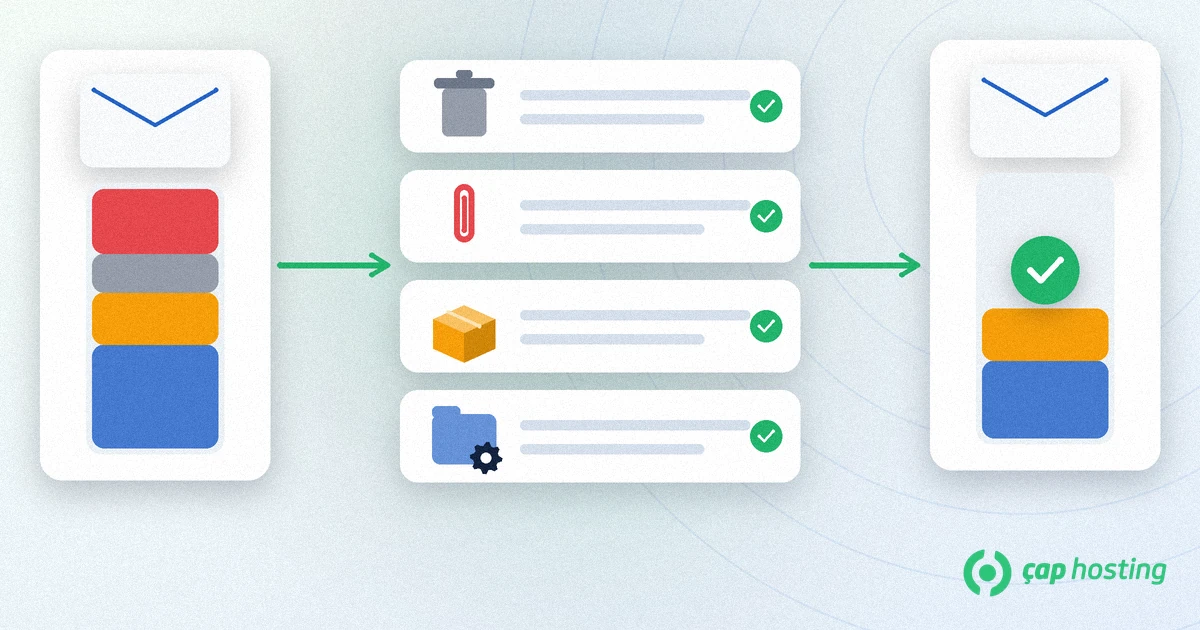
When an email quota is full, messages sent to you can bounce or be delayed, and copies of the messages you send may not be saved. Clearing large attachments, emptying the trash and moving old mail to a backed-up archive usually solves the problem right away. Sizing the quota of your business email accounts to how they are used and cleaning up regularly keeps it from coming back. For questions about the quota of your mailboxes at ÇAP Hosting, our support team can work through it with you.
If the sending server got a temporary error (452), it keeps the message queued and retries for a while; if you free up space in that time, the message can still arrive. If it got a permanent error (552), the message is not delivered and the sender receives a bounce, so they need to send it again.
Deleted messages are usually moved to Trash and keep using space on the server until that folder is emptied. Check the Spam folder as well. Some clients also update the used space with a short delay.
If you moved them to a local folder or archive file on your computer, they no longer use the server quota. If you moved them to an archive folder on the server, they still count.
Used and total space are usually shown in webmail or in the email accounts section of the hosting panel. If you are not sure, our support team can tell you your mailbox quota.
 Copyright © 2026 All Rights Reserved

 Turkey (Türkçe)
 Worldwide (English)