In short: An HTTP to HTTPS migration starts with installing an SSL certificate; then every HTTP URL is sent to its HTTPS equivalent with a single permanent (301) redirect. Update internal links, fix mixed content warnings, switch canonical tags and your sitemap to HTTPS, and monitor the move in Google Search Console — done this way, the migration won't cost you rankings.
HTTPS encrypts the traffic between the browser and the server with SSL/TLS, so data typed into contact forms, logins and checkout pages can't be read or altered in transit. If you'd like a refresher on the basics, read what an SSL certificate is. This article covers the practical part: how to move an existing website to HTTPS.
A smooth migration is mostly preparation. Don't set up any redirects until these are done:
yourdomain.com and www.yourdomain.com, plus any subdomains you use.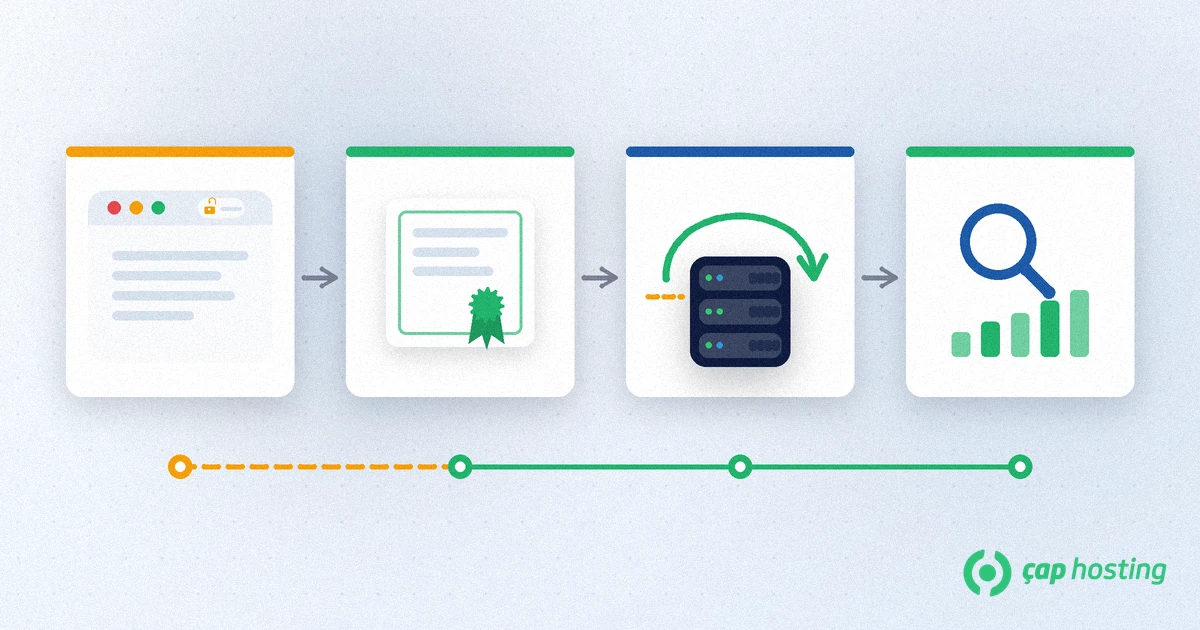
Start by installing a valid SSL certificate for your domain. Every ÇAP Hosting web hosting plan includes a free SSL certificate, managed from the CWP control panel. Once it's installed, open https://yourdomain.com, look for the padlock in the address bar and check that your domain is listed in the certificate details. At this point the site still loads over both HTTP and HTTPS — you haven't redirected anything yet.
Each HTTP URL should point to the same path on HTTPS with a permanent (301) redirect. Google's site move documentation states that 301 and other permanent redirects don't cause a loss in PageRank, while a temporary (302) redirect tells search engines the old URL will come back. On an Apache or LiteSpeed server, you can add this rule at the top of the .htaccess file in your site's root folder:
RewriteEngine On
RewriteCond %{HTTPS} off
RewriteRule ^(.*)$ https://%{HTTP_HOST}%{REQUEST_URI} [L,R=301]
Avoid redirect chains: if http://www first goes to https://www and then to https://, that's two hops. Send visitors straight to the final URL. If your site sits behind a CDN or proxy, the server may not see the request as HTTPS; if you get a redirect loop, set the rule up on the CDN side instead.
Redirects get visitors to the right place, but internal links that still point to HTTP add an unnecessary redirect to every click. On WordPress, change the WordPress Address (URL) and Site Address (URL) fields under Settings > General to https://. For old URLs inside posts and pages you can use WP-CLI — run it with --dry-run first to see how many records will change:
wp search-replace 'http://yourdomain.com' 'https://yourdomain.com' --dry-runIf a page loads over HTTPS but some images, scripts or stylesheets still come over HTTP, the browser drops the padlock or blocks those files. Open the browser's developer tools (F12 in Chrome) and check the Console tab for "Mixed Content" warnings. Change the http:// references in theme files, page builder settings and third-party embeds to https://.
Canonical tags, hreflang links on multilingual sites and your XML sitemap should list HTTPS URLs only; otherwise you're sending search engines a mixed signal about which version is the real one. Update the sitemap line in robots.txt as well.
A Domain property in Search Console covers all protocols; if you only use a URL-prefix property, add a new one starting with https://. Submit the new sitemap and check key pages with the URL Inspection tool. You don't need the Change of Address tool: Google's site move guide says it is only for moving to a different domain or subdomain, not for HTTP-to-HTTPS moves.
HSTS (HTTP Strict Transport Security) is a response header that tells browsers to load your site over HTTPS only for a set period: Strict-Transport-Security: max-age=31536000; includeSubDomains. It's powerful but hard to undo, so add it only after the redirects and the certificate have run without issues for a few weeks, start with a short max-age, and make sure every subdomain supports HTTPS before adding includeSubDomains.
All ÇAP Hosting hosting plans come with a free SSL certificate and the CWP control panel, and sites moving from another provider are migrated to CWP free of charge. If you need help with redirects, certificates or mixed content during the switch, get in touch with us.
Not if it's done properly. When every HTTP URL is redirected to its HTTPS version with a single 301, and canonical tags and the sitemap are updated, ranking signals carry over to the new URLs. You may see brief fluctuations in the first days.
Use a 301 (permanent) redirect. A 302 signals a temporary move and can lead search engines to keep the old HTTP URL in their index.
It's when a page loaded over HTTPS pulls some resources — images, scripts or stylesheets — over HTTP. It shows up as a “Mixed Content” warning in the Console tab of the browser's developer tools and is fixed by changing those references to https://.
No. According to Google, that tool is only for moving to a new domain or subdomain. For an HTTP-to-HTTPS move, submitting the new sitemap and monitoring the HTTPS property is enough.
 Copyright © 2026 All Rights Reserved

 Turkey (Türkçe)
 Worldwide (English)