In short: dig and nslookup are command-line DNS tools that show what A, MX, TXT or NS records your domain returns right now. After you change a record, use them (and if needed a public dig UI) to verify propagation and to separate email or site routing problems from application bugs.
You added a DNS record or changed nameservers; the browser still opens the old site or mail fails. The value in the panel and what the internet actually serves can differ. This guide assumes you know DNS record types and shows how to check with dig and nslookup step by step.
dig (domain information groper) is a DNS query tool from the BIND suite. For daily checks, +short prints only the answer.
nslookup is an interactive or one-shot DNS query tool on Windows and many UNIX systems. Microsoft documents the Windows nslookup command; use -type= to pick the record type.
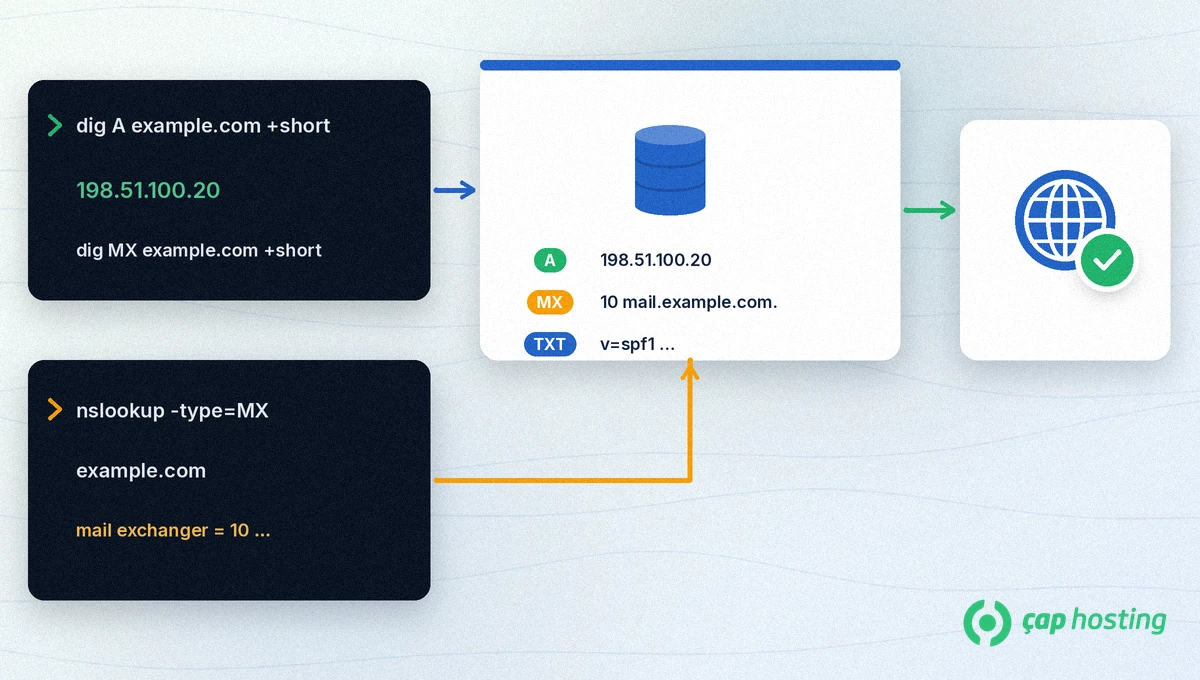
| Goal | dig example | nslookup example | Expected |
|---|---|---|---|
| Site IP (A) | dig A example.com +short | nslookup -type=A example.com | Same IPv4 as the A record in the panel |
| Email (MX) | dig MX example.com +short | nslookup -type=MX example.com | Priority + mail host name |
| Text (TXT / SPF) | dig TXT example.com +short | nslookup -type=TXT example.com | TXT rows from the panel |
| Nameserver (NS) | dig NS example.com +short | nslookup -type=NS example.com | Registered nameservers |
Examples use the reserved name example.com and the documentation address 198.51.100.20; substitute your domain. The DNS resolver on the machine that runs the command affects the answer — so one result does not mean "everywhere". See our DNS propagation guide.
Copy the exact A, MX or TXT row from your hosting or domain panel. You need a reference to compare.
On Linux or macOS: dig A yourdomain.com +short. An empty answer can mean the wrong type, a record that has not propagated yet or the wrong nameservers. For mail use dig MX yourdomain.com +short.
In Command Prompt: nslookup -type=MX yourdomain.com. Compare the mail exchanger lines with the panel.
If the local answer looks stale, query the same record with a public dig UI such as Google Admin Toolbox Dig. If local and public answers differ, you are looking at propagation or cache.
If you wrote the record in the wrong DNS zone, dig will not match. Check the nameserver change first; the same dig step is used for Search Console domain TXT verification (TXT verification).
dig and nslookup quickly show the gap between the panel row and the published answer. If you are stuck, open a support ticket and paste the command plus its output.
A record changed, browser still hits the old IP: Compare dig A yourdomain.com +short with the panel. If local is old and Google Toolbox is new, check your resolver cache. If both are old, the record may be in the wrong zone or nameservers are not updated yet.
MX looks right but mail still fails: MX only points at the mail host. SPF/DKIM TXT rows, blocklists and credentials are separate layers. Confirm dig MX first, then dig TXT for SPF.
Search Console cannot find the TXT: Use dig TXT to prove the record is published. Confirm the host is @ / blank and that you did not delete older verification rows by mistake.
On many Linux distributions it comes from dnsutils or bind-utils. Otherwise use an online dig UI such as Google Admin Toolbox Dig.
Asked against the same resolver they should show the same record; output formats differ. Different DNS servers can diverge during TTL or propagation.
It simplifies dig output to answer lines only. Run without +short when you need flags and authority details.
DNS only returns an address. The web server, SSL, firewall or application still need separate checks.
 Copyright © 2026 All Rights Reserved

 Turkey (Türkçe)
 Worldwide (English)