In short: To permanently redirect one domain to another (or between the www and non-www versions of a site) you set up a 301 redirect on the server. On Apache/LiteSpeed hosting this takes a few lines in the .htaccess file in your site root. This guide covers the steps, test commands and common mistakes.
domain.com and www.domain.com and you want a single canonical address.A 301 means "this address has moved permanently"; browsers and search engines treat the new address as the real one. See HTTP status codes explained for what each code means; the formal definition is in RFC 9110.
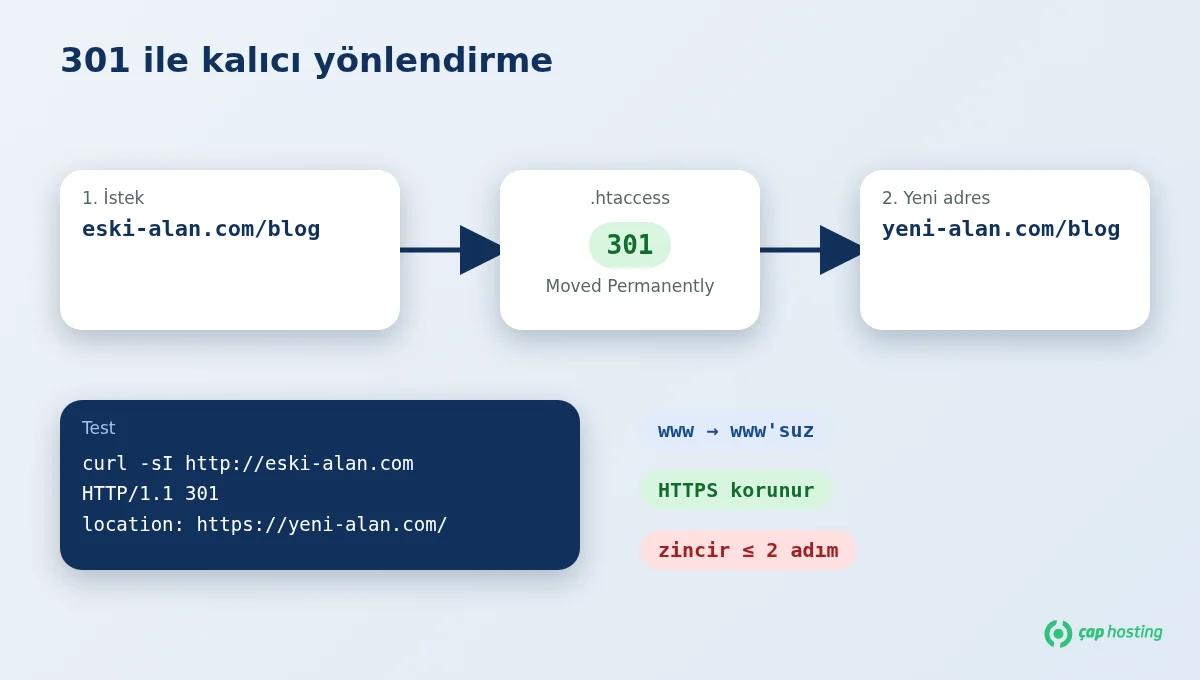
Open the .htaccess file in the old domain's document root and add the rules below at the top (replace old-domain.com and new-domain.com with your own):
RewriteEngine On
RewriteCond %{HTTP_HOST} ^(www\.)?old-domain\.com$ [NC]
RewriteRule ^(.*)$ https://new-domain.com/$1 [R=301,L]
Thanks to $1, a visitor arriving at a deep URL on the old site lands on the same path on the new one (old-domain.com/blog/post → new-domain.com/blog/post). If the new site's URL structure differs, add individual redirects for important pages.
To use the non-www version:
RewriteEngine On
RewriteCond %{HTTP_HOST} ^www\.domain\.com$ [NC]
RewriteRule ^(.*)$ https://domain.com/$1 [R=301,L]
To use the www version:
RewriteEngine On
RewriteCond %{HTTP_HOST} ^domain\.com$ [NC]
RewriteRule ^(.*)$ https://www.domain.com/$1 [R=301,L]
Technically it makes no difference which one you choose; what matters is picking one and staying consistent. Update your internal links and sitemap to match.
WordPress keeps its own rules between the # BEGIN WordPress and # END WordPress lines; do not write inside that block because WordPress may regenerate it. Add your redirect rules above it. Also make sure "WordPress Address" and "Site Address" under Settings → General match the address you chose. For general upkeep see WordPress site health.
Request only the headers in a terminal to verify:
curl -sI http://old-domain.com/sample-page | grep -iE "^(HTTP|location)"
You should see a 301 status and a location: https://new-domain.com/sample-page line. To follow the whole chain:
curl -sIL http://www.old-domain.com/ | grep -iE "^(HTTP|location)"
You should see at most one or two redirects; long chains slow pages down. Browsers cache redirects, so test in a private window or clear your browser cache for reliable results.
| Symptom | Likely cause and fix |
|---|---|
| 500 Internal Server Error | A syntax error in the rules. Review the lines you added or restore your backup. |
| "Too many redirects" error | A redirect loop: the target also matches the same rule, or a plugin/CDN applies a different redirect. Check the rules and plugin settings. |
| Redirect does nothing | The domain does not point to the server, .htaccess is in the wrong folder, or the server runs Nginx (.htaccess does not work on Nginx). |
| Certificate warning | No valid SSL for the old domain. Activate a certificate, then test again. |
On an Nginx server the same job is done in the server block with return 301 https://new-domain.com$request_uri;.
If you get stuck, open a support ticket and our team will help.
301 signals a permanent move, 302 a temporary redirect. Use 301 for lasting changes such as a domain change.
An .htaccess change usually applies as soon as it is saved. Any delay is typically browser or cache-layer caching.
Yes, because the rules above use $1; each page goes to the same path on the new domain. If the new site's URL structure changed, add custom rules.
If your control panel has a "Redirects" section you can do the same job there; it writes a similar rule in the background. Whichever you use, test it with curl.
 Copyright © 2026 All Rights Reserved

 Turkey (Türkçe)
 Worldwide (English)