In short: UFW (Uncomplicated Firewall) is a tool for managing firewall rules with simple commands on Ubuntu and Debian servers. For a safe setup, first deny incoming traffic by default, then allow SSH, and only after that turn the firewall on with sudo ufw enable. You open a port with sudo ufw allow 443/tcp and delete a rule with sudo ufw status numbered followed by sudo ufw delete number.
The Linux kernel filters incoming and outgoing packets with the netfilter framework; UFW is a front end on top of it that lets you write rules in plain language. On Ubuntu it is usually installed but turned off. We explain why a firewall should protect your server in what is a firewall. You run the commands below after connecting to your server over SSH; all of them need administrator rights, so they start with sudo.
sudo ufw status verbose
If the output shows Status: inactive, UFW is installed but off. If the command is not found, install it with sudo apt update && sudo apt install ufw. Before you start, listing which services listen on which ports, as shown in checking open ports with ss, makes it clear which ports you need to keep open.
sudo ufw default deny incoming
sudo ufw default allow outgoing
With these two commands, every incoming connection is refused unless you explicitly allow it, while connections the server makes to the outside (updates, sending email, API calls) stay open. The firewall is still off at this point, so your connection is not affected.
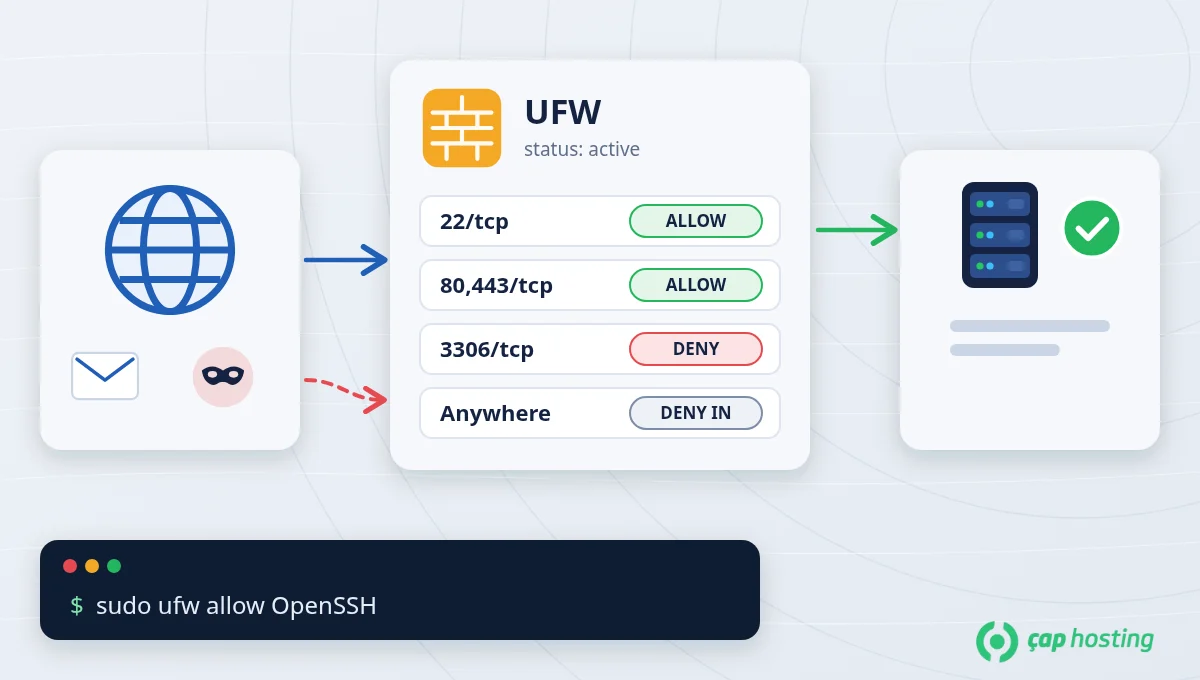
sudo ufw allow OpenSSH
OpenSSH is a ready-made application profile that opens port 22/tcp; sudo ufw allow 22/tcp does the same. If SSH runs on a different port, use that port instead, for example sudo ufw allow 2222/tcp. To slow down brute-force attempts you can use limit instead of allow. If you skip this step, your SSH connection drops the moment you turn on the firewall and you can only reach the server through your provider's console.
sudo ufw enable
UFW warns that existing SSH connections may be disrupted; if you added the SSH rule, confirm with y. Then, without closing your current session, test that you can connect from a new terminal window. UFW also starts automatically when the server reboots.
sudo ufw allow 80,443/tcp
If you run a web server, this command opens the HTTP and HTTPS ports. You can see the ready-made profiles of installed packages with sudo ufw app list and allow them with, for example, sudo ufw allow "Nginx Full" or sudo ufw allow "Apache Full". For services such as a database that only one address should reach, limit the source instead of opening the port to everyone:
sudo ufw allow from 203.0.113.10 to any port 3306 proto tcp
sudo ufw status numbered
This command shows the rules with their numbers. To delete a rule, give its number: sudo ufw delete 3. You can also delete a rule by repeating it: sudo ufw delete allow 80/tcp. The numbers change after every deletion, so if you are removing several rules, list them again each time. A rule may appear on separate lines for IPv4 and IPv6; you need to delete both.
| Command | What it does |
|---|---|
sudo ufw status verbose |
Shows the status, default policies and rules. |
sudo ufw allow 443/tcp |
Allows incoming connections to a port. |
sudo ufw deny 3306/tcp |
Blocks incoming connections to a port. |
sudo ufw allow from 203.0.113.10 to any port 22 proto tcp |
Allows a port only from a specific IP address. |
sudo ufw limit OpenSSH |
Temporarily blocks an IP address that tries 6 or more connections within 30 seconds. |
sudo ufw status numbered |
Lists the rules with their numbers. |
sudo ufw delete 3 |
Deletes the rule with the given number. |
sudo ufw reload |
Reloads the rules. |
sudo ufw disable |
Turns the firewall off; rules are kept. |
All options are covered in the ufw manual page and the Ubuntu firewall documentation.
127.0.0.1:8080:80, or restrict them as described in Docker's documentation.sudo ufw logging on records blocked connections; you can see them in /var/log/ufw.log or with sudo journalctl -k | grep UFW.firewall-cmd command.A firewall is only one of the steps for a new server. To handle it together with updates, SSH keys and Fail2ban, see our Linux server hardening article. If you have locked yourself out of the server, you can open a support ticket.
The firewall was turned on without an SSH rule. Connect through your provider's web console (VNC) and run sudo ufw allow OpenSSH, or turn the firewall off temporarily with sudo ufw disable.
No. A firewall enabled with sudo ufw enable and its rules are persistent; they load automatically when the server restarts.
Yes. On Ubuntu, the IPV6=yes setting in /etc/default/ufw is on by default, and the rules you add are also created for IPv6.
The sudo ufw reset command turns the firewall off and deletes all rules. Then apply the steps in this article again, starting with the SSH rule.
 Copyright © 2026 All Rights Reserved

 Turkey (Türkçe)
 Worldwide (English)