In short: Hacked website recovery starts with protecting your visitors: take the site offline for a while, then change your hosting, FTP, database and admin passwords. Next, map the damage, either restore a clean backup from before the attack or remove the malicious code, close the hole the attacker used and finally request a review in Google Search Console.
A hacked site often looks completely normal to its owner. Attackers may show the malicious content only to search engines, to mobile visitors or to people arriving from search results. This guide covers the warning signs, what to do in the first hours and the order to follow until your site can be trusted again.
None of these signs is proof on its own, but if you see several of them together, investigate right away.
site:yourdomain.com returns pharmacy, gambling or foreign-language pages, which suggests injected URLs.Because warnings depend on each visitor's browsing context, you may not be able to reproduce them. Google recommends treating the Security issues report as the source of truth. You can also look up your domain on the Google Safe Browsing status page.
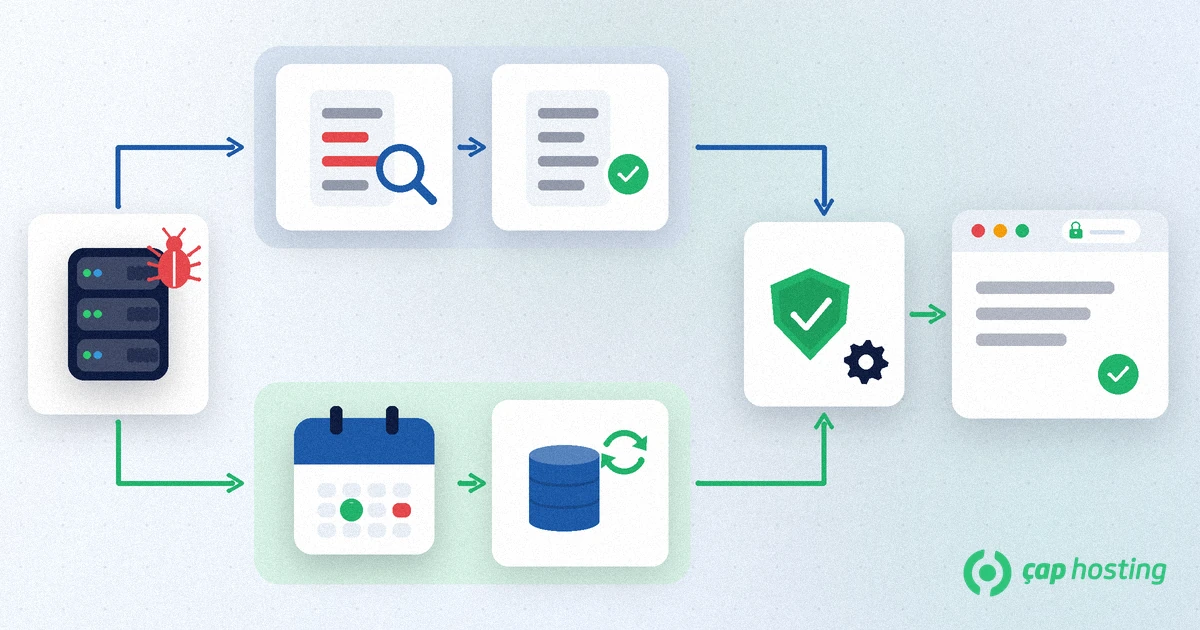
Working through the steps in order, instead of deleting files in a panic, limits the damage and makes the cleanup stick.
Put the site into maintenance mode or block access for now. A page that runs malicious code can harm visitors' devices, and every hour it stays online costs you more trust.
Before you clean anything, save a copy of the files and database as they are now. This copy is not clean and must never be restored; keep it only to investigate how the attacker got in and, if needed, to recover content added later.
From a device you know is clean, change the passwords for the hosting control panel, FTP/SFTP, database, site admin and the email accounts on your domain. Remove administrator accounts you don't recognise. As Google points out, attackers may also change notification settings, so check the users and notification emails in Search Console.
The sample URLs in the Security issues report are a good starting point, but Google states that the list is not complete. Check files changed in the last few days, redirect rules in .htaccess and the server access logs. Strings such as eval, base64_decode or unescape are common traces of obfuscated malicious code. Instead of opening suspicious pages in your browser, use the URL Inspection tool in Search Console or curl on the command line so you don't put your own device at risk.
You have two options: replace the affected files with the last good backup from before the attack, or remove the malicious content yourself. The comparison below helps you choose. Either way, fix the whole site rather than a few pages; Google does not grant a partial return for a partially fixed site.
As long as the attacker's way in stays open, the site will be compromised again. Update the core, themes and plugins safely, delete plugins you don't use and drop unlicensed "nulled" themes. A web application firewall (WAF) adds another layer by stopping malicious requests before they reach the application.
Once every issue in the report is fixed on every page, request a review from the Security issues report and describe the fixes you made. According to Google, a security review can take from a few days to a few weeks; don't resubmit before you get a decision.
| Criterion | Clean in place | Restore a clean backup |
|---|---|---|
| When it fits | The malicious code sits in a few files and is easy to find | You know when the attack started and have a backup taken before that date |
| Skills needed | Reading and understanding code | Picking the right backup date and restoring it |
| Risk of data loss | Low; content stays in place | Content and orders added after the backup date must be brought over again |
| Risk of hidden leftovers | A missed backdoor may remain | Low, but the site will be hacked again if the hole stays open |
In practice the two are often combined: files come from the clean backup and content added after the backup date is checked and moved over by hand. Without regular backups stored away from the server this gets much harder, which is why our guide to a sound backup strategy matters. For detailed cleanup steps, see Google's guide to sites hacked with malware.
If you run WordPress, our WordPress security checklist walks through these steps one by one.
If you think your site has been hacked, open a support ticket. Adding the signs you noticed, the date and time you first saw them and any suspicious file paths helps narrow down the cause faster.
Google tries to keep hacked content out of search results and can show affected pages with a warning label. Once you fix the issues and pass the review, Google removes the warnings within a few days, although it notes that being flagged may affect your ranking for a while.
No. The backup still contains the vulnerability the attacker used. If you don't change passwords and update the software right after restoring, the site can be compromised again quickly.
Yes. Warnings and malicious redirects can depend on the visitor's browser, device or where they came from. Google recommends relying on the Security issues report in Search Console to confirm the status.
According to Google, a security review can take from a few days to a few weeks. You are told by email when the request is received and when it is complete; don't resubmit before a decision.
 Copyright © 2026 All Rights Reserved

 Turkey (Türkçe)
 Worldwide (English)