In short: To choose WordPress plugins well, treat every plugin as extra software that brings security, speed and maintenance costs. Before you install one, check that it comes from a trusted source, was updated recently, is compatible with your WordPress and PHP versions and that support questions get answers. If two plugins do the same job, pick the one that is better maintained and add fewer plugins overall.
Plugins are what make WordPress so flexible: a contact form, SEO, caching or a shop is a few clicks away. But each plugin is another piece of software running on your site. This article walks through eight checks to make before installing a plugin, the fields to read on a plugin page and how to try a plugin safely.
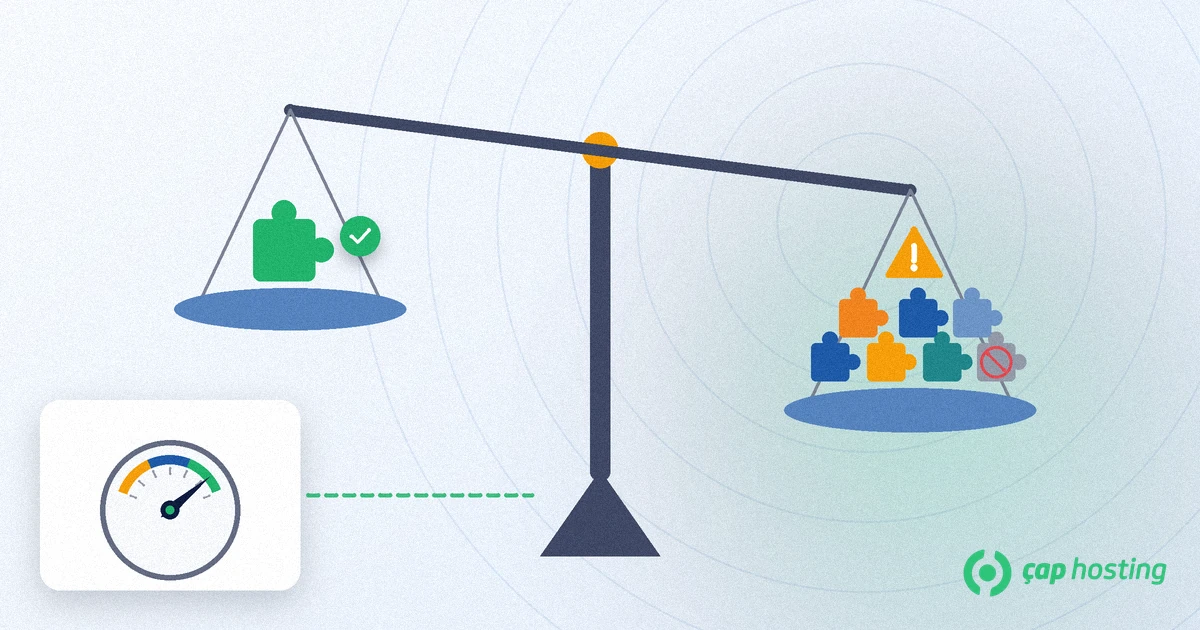
The Manage Plugins page of the WordPress documentation defines plugins as PHP scripts that extend WordPress and says plainly that plugins in the directory are of varying quality and often works in progress. Being listed in the directory does not make a plugin the right choice for your site.
A poorly chosen plugin causes trouble in three ways: it can leave security holes when it is not updated, slow the site down by loading code you do not need, or conflict with another plugin or your theme and break pages. We cover the security side in our WordPress security checklist and the speed side in our guide to WordPress speed optimization.
The information box on a WordPress.org plugin page brings most of these checks together:
| Field | What it shows | What to watch for |
|---|---|---|
| Last updated | When the latest version was released | Be careful if there has been no update for a long time |
| Tested up to | Newest WordPress version tested | Should not lag behind the version you run |
| WordPress version | Minimum WordPress version required | Your site must meet it |
| PHP version | Minimum PHP version required | Compare it with the PHP version on your hosting plan |
| Active installations | Approximate number of active installs | Not a deciding factor on its own |
Read these fields together. A plugin that was updated recently, has been tested with your WordPress version and gets regular answers in its support forum is a sounder choice than one with many installs that has not been updated for a long time. If you do not know which PHP version your site runs, your hosting provider can tell you.
When you search for plugins inside the WordPress dashboard, each result also shows a note saying whether it is compatible with your WordPress version, plus a "More Details" link.
Choosing a plugin does not end at installation. Keep plugins up to date; since WordPress 5.5 you can turn on automatic updates for each plugin individually. Our article on WordPress updates shows the process step by step. Delete plugins you no longer use instead of just deactivating them, because a deactivated plugin's files stay on the server. Every few months, review your plugin list and decide whether each one is still needed.
To choose WordPress plugins well, check the source, recent maintenance, compatibility and active support. Read the information box on the plugin page, take a backup before installing, test on a copy when possible and delete plugins you do not use. A site with fewer, well-maintained plugins is both safer and faster.
There is no fixed number. What matters is that each plugin meets a real need, is kept up to date and does not conflict with the others. Merge plugins that do the same job and delete the ones you do not use.
Be careful. According to the WordPress documentation, a plugin that has not been updated since the latest WordPress release may be incompatible, or its compatibility may be unknown. Prefer a maintained alternative if one exists.
Price alone says nothing about security. For any plugin, check how often it is updated, how the developer handles support and that you got it from an official source.
Not if you will not use it again. A deactivated plugin's files stay on the server. Deactivate the plugin first, then delete it.
 Copyright © 2026 All Rights Reserved

 Turkey (Türkçe)
 Worldwide (English)