In short: WordPress updates renew core, plugins and themes in a safe order. Take a full backup first, trial on staging when you can, then apply on live and smoke-test the site. Skipping updates leaves known holes open; updating blindly risks a broken site.
The WordPress ecosystem ships patches continuously. The official WordPress updating guide stresses backups and checking plugin compatibility before you upgrade. This article walks through a hosting-side routine for safe WordPress updates.
Outdated plugins and old core builds are the first weak spots automated scanners probe. Much of a WordPress security checklist assumes current software. Updates also bring performance fixes and API changes; waiting until dozens of packages pile up makes one big upgrade riskier.
Most breakage comes from clicking "update all" and then forgetting to clear page cache, object cache and the CDN. After an update at least try logging in, editing a post and submitting a critical form. On an e-commerce site, a test order or payment-page check is mandatory.
On multilingual or multisite installs, updates run from the network admin; confirm child-site themes stay compatible. If you use a child theme, verify that updating the parent did not wipe customisations.
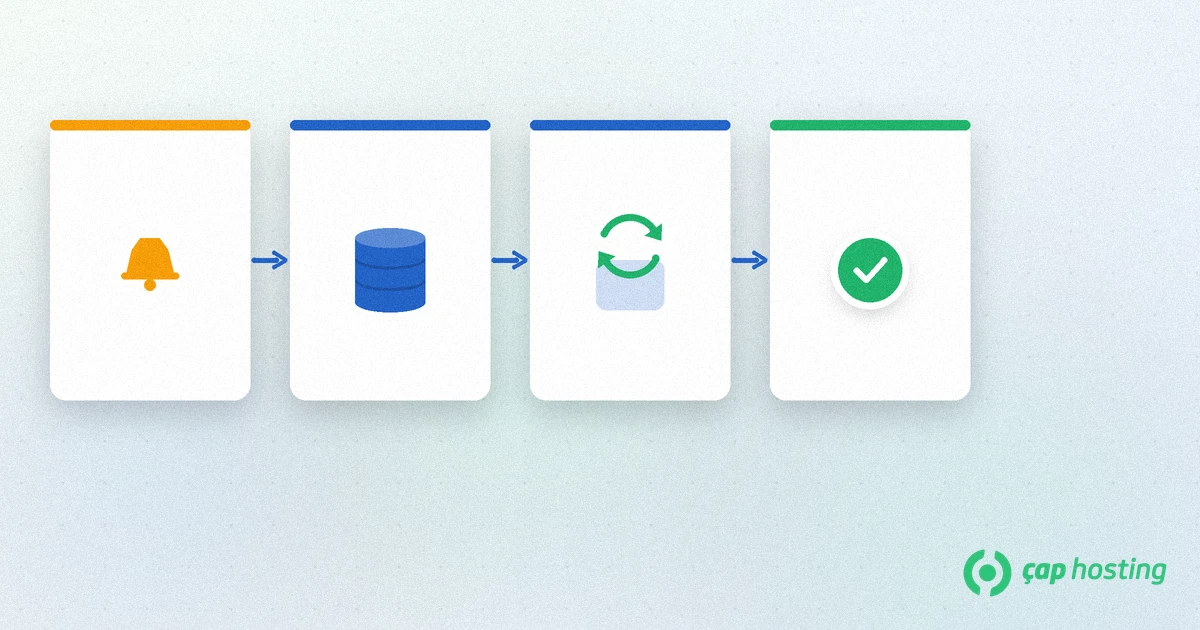
Files and the database must be backed up together. Panel backup, plugin backup or an external copy — whichever you use, confirm you have restored once successfully. See our website backup guide for the bigger frame.
Apply plugin and theme updates on a live copy. Click critical pages (home, cart, login, contact form). Without staging, at least schedule a low-traffic window.
In most installs, plugin/theme updates come before WordPress core so a conflicting plugin shows earlier. If auto-updates are on, know which components they cover — helpful for security minors, risky for fragile custom themes.
After updating, clear caches, confirm HTTPS still works, log in and submit critical forms. For hosting-side speed checks, see our WordPress speed optimization article.
Disable plugins one by one to find the culprit. If core broke, restore from backup and get help. If you are stuck, open a support ticket.
Update discipline does not replace a WAF or server hardening; it complements them. Review the Linux server hardening steps regularly as well.
Treat WordPress core minor security updates differently from major releases. Turning minors on automatically closes known holes without delay. Approving majors by hand gives you a chance to catch theme and plugin incompatibilities before they hit live.
Plugin auto-updates can be enabled per package. Keeping them off for payment, membership or custom-integration plugins while enabling them for simple security-focused plugins is a balanced approach. If your theme vendor does not say auto-updates are supported, manage the theme by hand.
Before you change the PHP version in the hosting panel, check the support matrix for WordPress and your plugins. Doing a software update and a PHP bump at the same time makes it hard to see which change broke things. Update the software first, then raise PHP one step and verify on staging.
Checking the WordPress dashboard once a week for pending updates is enough for most SME sites. Once a month, batch-trial on staging; every quarter, delete unused plugins and themes. Avoid major version jumps right before a campaign or peak sales period.
Who approves the update, where is the backup, what is the rollback plan? Write it in a short internal note. Maintenance mode during the update prevents visitors from seeing empty error pages. Afterwards watch search console or uptime monitoring for a sudden 5xx spike.
If you have a custom theme or a critical payment plugin, read the vendor release notes. Shipping to live without "tested" can lose orders on WooCommerce sites. When in doubt, lengthen the staging window.
Keeping an update log helps too: date, which packages, who applied them, what the smoke test covered. A month later it is easier to trace a broken feature. The same log is a reference before a host migration or PHP upgrade.
Minor core security updates are useful. Major version jumps and critical plugins are safer to manage by hand on most SME sites.
Rename the last-updated plugin via FTP or the file manager to disable it. If that fails, restore from backup and check the error log.
Common practice is plugins/themes first, then core. You can reverse the order on staging; the goal is to catch breakage before live.
Not when done correctly. URLs and content stay the same. Problems usually come from a broken theme/plugin or a bad redirect — check key pages after updating.
 Copyright © 2026 All Rights Reserved

 Turkey (Türkçe)
 Worldwide (English)