In short: To check disk usage on Linux, first run df -h to see which partition is full, then use du to find which folder takes the most space on it. df shows the overall state of the disk and du shows folder sizes. Use lsof +L1 for deleted files that are still held open and journalctl --vacuum-size for old system logs.
When a disk fills up, databases cannot write, email is rejected and websites start returning errors. You can run the commands in this guide after you connect to your server over SSH. They are the same on common distributions such as Ubuntu, Debian, AlmaLinux and Rocky Linux.
The df command shows the size, used space and free space of mounted file systems. The -h option prints sizes in readable units (G, M):
df -hLook at the Use% and Mounted on columns. For example, the line /dev/vda1 40G 38G 2.0G 95% / means the partition holding the root directory is 95 percent full. To see the file system type as well, use df -hT.
Sometimes you get a "No space left on device" error even though df -h shows free space. A common reason is that the inodes have run out: a large number of small files has used up the entries reserved for files. Check it like this:
df -i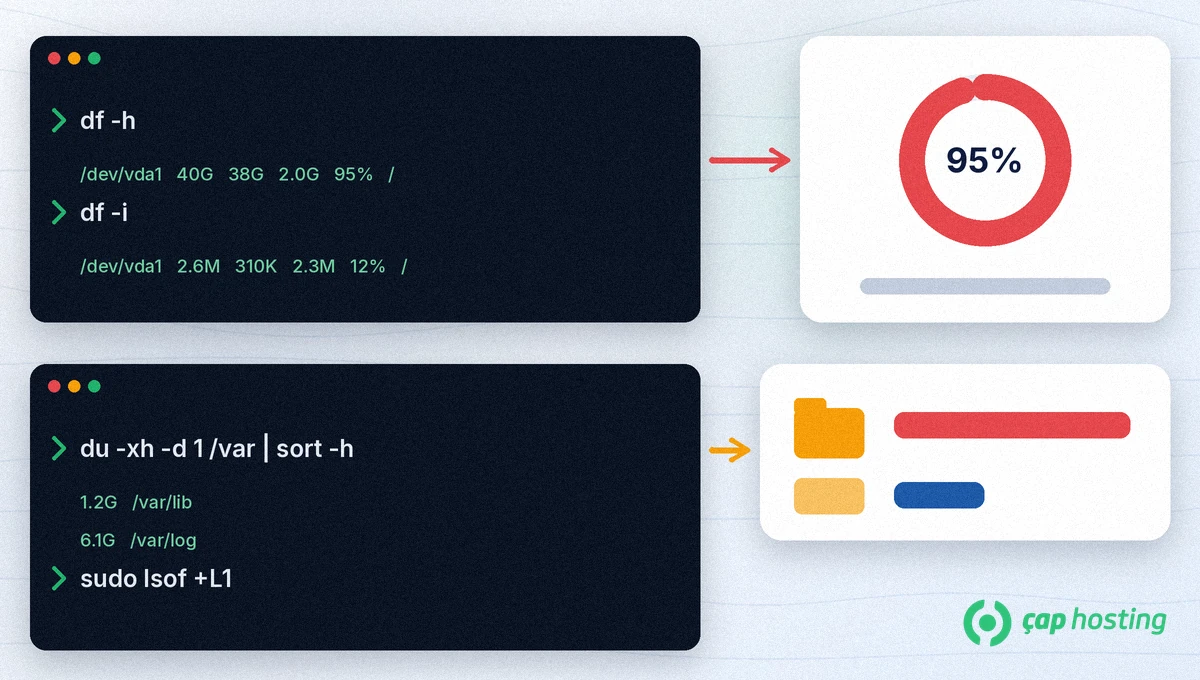
du calculates how much space folders use on disk. Instead of scanning a big folder all at once, go one level deeper at a time:
sudo du -xh -d 1 / | sort -h-h: prints sizes in readable units.-d 1: shows totals only for folders one level down.-x: stays on one file system, so only the full partition is scanned.sort -h: sorts the results by size from small to large, so the biggest folder is at the bottom.Once you find the biggest folder, repeat the command for it, for example sudo du -xh -d 1 /var | sort -h. To see the total of a single folder, du -sh /var/log is enough. The usual suspects are logs (/var/log), backup files, package caches and application upload folders.
journalctl --disk-usage to see how much space systemd logs use. To shrink old archived logs below a given size:sudo journalctl --vacuum-size=500MAccording to the journalctl manual, this only removes archived journal files and leaves active ones alone.
sudo apt clean, and on AlmaLinux and Rocky Linux, sudo dnf clean all removes downloaded package files. Installed packages are not affected.sudo lsof +L1The output shows the service holding the file. The space is freed when the service releases it; restarting the service with systemctl is usually enough.
Caution: do not delete database files under /var/lib or any file you are not sure about by hand. When in doubt, take a backup first or ask our support team.
Checking disk usage regularly lets you spot the problem before errors appear. To track disk usage together with CPU and RAM, see our guide on how to monitor server resource usage. Make sure log files are rotated and old backups are removed automatically. If the disk fills up again soon after a cleanup, you may need a bigger disk or plan rather than more cleanup.
df shows the overall state of the file system, while du adds up the files it can reach. Deleted files that are still open keep using space in df but do not appear in du. You can find them with lsof +L1.
The inodes may have run out. Check with df -i. A large number of small files, such as old session or cache files, is usually the reason.
You can delete old archived logs, but instead of deleting active log files it is safer to use tools such as journalctl --vacuum-size and log rotation.
 Copyright © 2026 All Rights Reserved

 Turkey (Türkçe)
 Worldwide (English)