In short: To update a Linux server, you upgrade the operating system and software packages to new releases containing security and bug fixes, using the distribution's package manager. Ubuntu and Debian use apt; AlmaLinux, Rocky Linux and RHEL use dnf. Take a backup before you update and check afterwards whether a reboot is required.
On an unmanaged VPS or VDS, updates are your responsibility. This guide assumes you can connect to the server via SSH and have sudo rights.
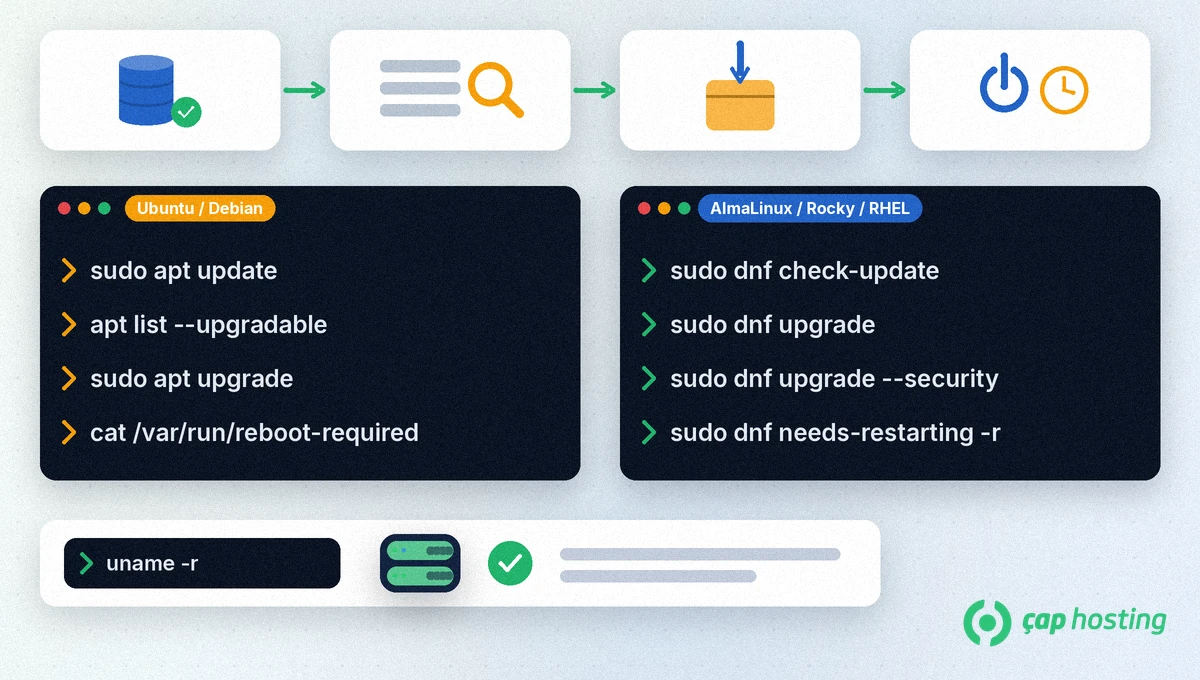
1. Refresh the package lists: sudo apt update
2. See which packages can be upgraded: apt list --upgradable
3. Upgrade the packages: sudo apt upgrade
apt upgrade never removes packages. If changed dependencies require removing a package, use sudo apt full-upgrade; because it may remove packages, read its output before you confirm.
4. Check whether a reboot is needed: cat /var/run/reboot-required. If the file exists, the system is waiting for a reboot.
For details, see the Ubuntu Server package management documentation.
1. List pending updates: sudo dnf check-update. The command exits with code 100 when updates are available and 0 when there are none.
2. Upgrade all packages: sudo dnf upgrade
3. To apply security updates only: sudo dnf upgrade --security
4. Ask whether a reboot is required: sudo dnf needs-restarting -r. An exit code of 1 means a reboot is needed. Use the -s option to list only the services that need a restart (needs-restarting documentation).
| Task | Ubuntu / Debian | AlmaLinux / Rocky / RHEL |
|---|---|---|
| List updates | sudo apt update and apt list --upgradable | sudo dnf check-update |
| Upgrade packages | sudo apt upgrade | sudo dnf upgrade |
| Security updates only | unattended-upgrades (security by default) | sudo dnf upgrade --security |
| Reboot check | cat /var/run/reboot-required | sudo dnf needs-restarting -r |
| Automatic updates | unattended-upgrades | dnf-automatic |
On Ubuntu Server the unattended-upgrades package is installed by default and applies security updates daily. Its settings live in /etc/apt/apt.conf.d/50unattended-upgrades and 20auto-upgrades, and logs are kept under /var/log/unattended-upgrades (Ubuntu automatic updates documentation).
On AlmaLinux and Rocky Linux, install the dnf-automatic package for the same job. Its settings are in /etc/dnf/automatic.conf; upgrade_type = security limits it to security updates (dnf-automatic documentation).
An update can stop halfway when the SSH connection drops or the disk fills up. Running long updates inside a session such as screen or tmux keeps them going even if your connection drops, which reduces that risk.
sudo dpkg --configure -a finishes configuring all packages that were unpacked but not yet configured. Then run sudo apt update and sudo apt upgrade again. Package operations are logged in /var/log/dpkg.log.sudo dnf history lists past package transactions with their IDs. To roll back a problematic transaction, use sudo dnf history undo <transaction-id>, which performs the opposite of every operation in that transaction.A rollback is not always possible, for example when the older package version is no longer available in the repositories. That is why the backup or snapshot you took before updating remains the most reliable way back.
Once the server is back up, check the running kernel version with uname -r, then confirm that services such as the web server and the database are running. Updates are a recurring part of Linux server hardening.
If a service does not start or you see errors after an update, open a support ticket and include the command you ran and its error output.
A good starting point is to apply security updates automatically and to review other updates by hand in a regular maintenance window, for example once a week.
apt upgrade never removes packages. apt full-upgrade may remove packages to resolve dependency changes, so read its output before you confirm.
No. A reboot is usually needed when the kernel or core libraries are updated. Check /var/run/reboot-required on Ubuntu or run dnf needs-restarting -r on AlmaLinux.
 Copyright © 2026 All Rights Reserved

 Turkey (Türkçe)
 Worldwide (English)