In short: To clear browser cache means deleting the copies of pages, images and files your browser stores on your computer so that sites open faster. If you cannot see a change you made to your website or a page looks broken, clearing the cache first often solves it. Google Chrome uses the Delete browsing data dialog and Microsoft Edge uses Clear browsing data.
Browsers keep parts of the sites you visit locally; in Google's words, this helps pages open faster on your next visit. But after you update your site, change the theme or logo, or complete a move from HTTP to HTTPS, the browser may keep showing the old copy. The steps in this guide were verified against Google's and Microsoft's official help pages.
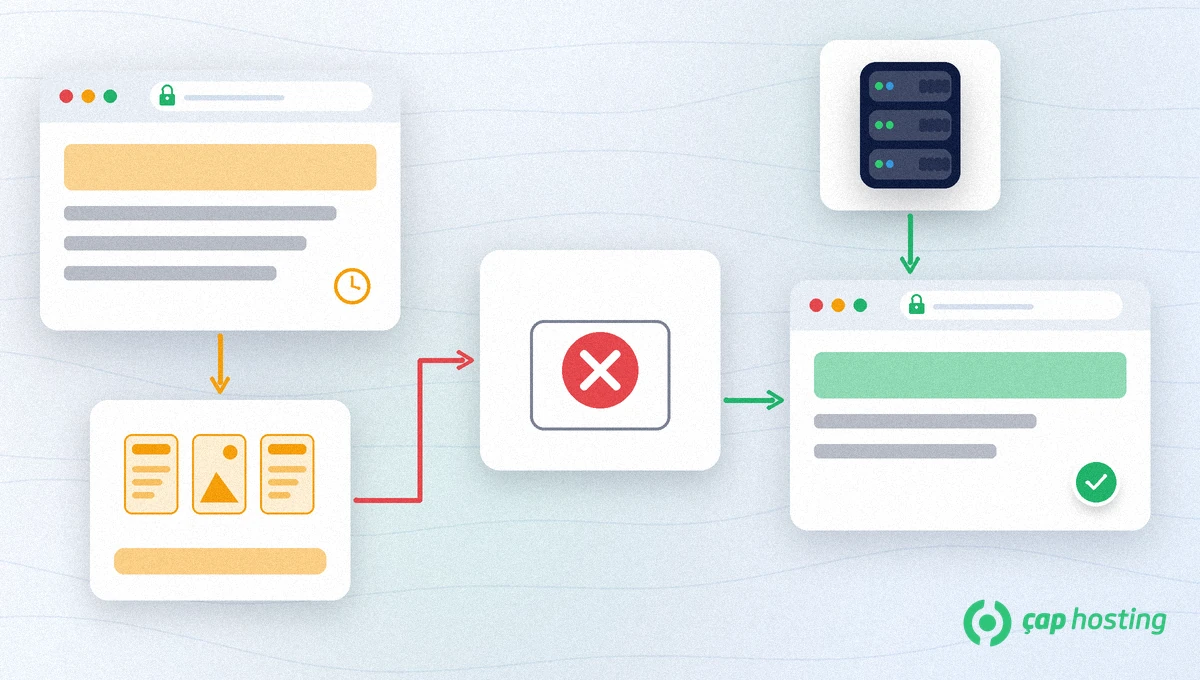
An old CSS or image file left in the cache loads instead of the new version on the server. You know you made the change, yet the page looks old or the layout breaks. When you clear the cache, the browser requests the files from the server again and shows the current version.
If you only want to see the current page, the first option is usually enough. If you have sign-in or session problems, you may need to clear cookies too.
These steps follow Google Chrome Help: Delete browsing data in Chrome.
Shortcut: type "Delete browsing data" in the address bar and tap the action chip to reach the same dialog. If you are signed in to Chrome with your Google Account, deleted data is also removed from your other devices and your account.
These steps follow Microsoft Support: View and delete browser history in Microsoft Edge.
If sync is on in Edge, synced items are cleared across all synced devices. To clear only the device you are using, first go to Settings > Profiles > Sync and select Turn off sync.
The browser cache is not the only layer. If the problem persists, work through this order:
If the site is generally slow, the cause may lie elsewhere; our guide on why your website is slow lists the usual causes. For WordPress sites, server-side settings are covered in our WordPress speed optimization article. If the problem continues after these steps, open a support ticket; adding the page URL and a screenshot speeds up the fix.
Clearing the cache is safe: saved passwords are not deleted unless you select them. Remember, though, that clearing cookies means signing in to sites again.
Not if you tick only the cache option. Saved passwords in Chrome and Passwords in Edge are separate options that are not deleted unless you tick them.
Clearing only cached images and files does not sign you out. If you also delete cookies and other site data, you will need to sign in again on most sites.
To see a change you just made, the last hour is usually enough. If the problem persists, try again with all time.
Usually not; browsers refresh files over time. After major changes, clearing your site's caching plugin or CDN cache helps visitors see the current version sooner.
 Copyright © 2026 All Rights Reserved

 Turkey (Türkçe)
 Worldwide (English)