In short: The hosts file is a plain text file that maps domain names to IP addresses and that your computer checks before it asks DNS. When you move a site to a new server, one line in this file lets you open and test the site from the new server on your own computer only, without changing DNS records and without affecting visitors.
This is most useful when migrating a website to a new host: once files and the database are on the new server, you confirm everything works before you point the domain there.
Each line of the hosts file holds an IP address followed by one or more names. According to the Linux hosts(5) manual page, the format is "IP address, canonical name, optional aliases", with fields separated by spaces or tabs. Everything after a "#" is a comment.
Programs that use the system resolver, such as browsers and ping, read this file before they ask DNS. If there is a match, the IP address in DNS is ignored on that computer. The change affects only the computer you edit; every other visitor keeps reaching the site wherever DNS points.
The examples below use 203.0.113.10, an address reserved for documentation, as the new server and example.com as the domain. Replace them with your own IP address and domain.
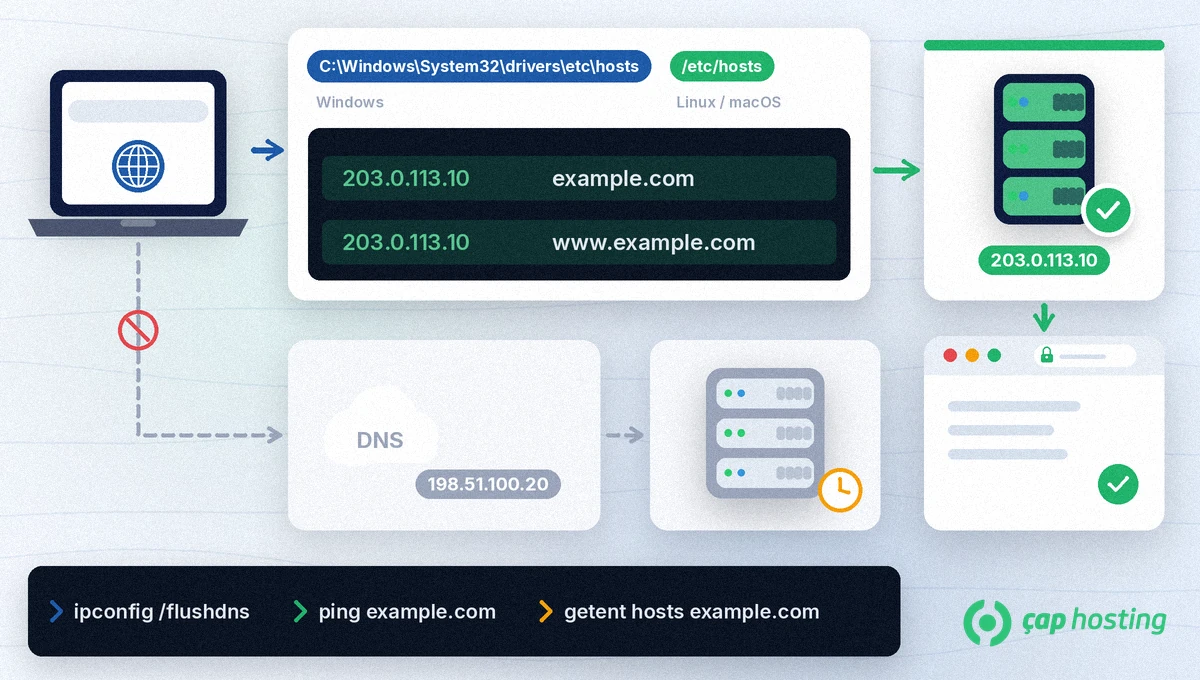
1. Find Notepad in the Start menu, right-click it and select Run as administrator. As Microsoft's documentation explains, an editor that is not running as administrator fails with an access error when you save the file.
2. In Notepad, open C:\Windows\System32\drivers\etc\hosts. The file has no extension, so you may need to change the filter in the open dialog to show all files.
3. Add these two lines at the end of the file:
203.0.113.10 example.com203.0.113.10 www.example.com
4. Save the file, then clear the DNS cache in Command Prompt with ipconfig /flushdns.
On Linux and macOS the file is /etc/hosts and is edited with sudo. On Linux, open it with, for example, sudo nano /etc/hosts, add the same two lines and save. On distributions that use systemd-resolved, clear the cache with resolvectl flush-caches. On macOS, open the file with sudo in Terminal and add the same lines; if the change does not show, quit the browser completely and open it again.
| System | Command | What you should see |
|---|---|---|
| Windows | ping example.com | The new server's IP address in the reply lines |
| Linux | getent hosts example.com | The new server's IP address at the start of the line |
| macOS | ping example.com | The new server's IP address in the reply lines |
Do not use nslookup or dig for this check: they send the query straight to a DNS server, ignore the hosts file and show you the old address. When you do want to check the DNS side, our guide to checking DNS with dig and nslookup helps. If the IP address is right, open the site in your browser and try the pages, forms and admin area.
If the new server has no certificate for your domain yet, the browser may show a security warning. Automatic certificates such as Let's Encrypt use the HTTP-01 challenge, which fetches a validation file through your domain on port 80; your hosts file does not affect that check. That is why an automatic certificate is usually issued after DNS points to the new server. For background, see what an SSL certificate is.
If everything works, point the domain's DNS record to the new server. After the switch, delete the lines you added to the hosts file or turn them into comments by putting "#" in front. If you forget them, your computer keeps opening the site from the old address when the server IP changes in the future. A DNS change can take time to reach everyone; our guide on DNS propagation explains why.
No. The hosts file applies only to the computer where you edit it. Other visitors keep reaching the site wherever its DNS records point.
The file requires administrator rights. On Windows, run Notepad as administrator; on Linux and macOS, open the file with sudo.
Your computer or browser may still hold the old record in its DNS cache. On Windows run ipconfig /flushdns, quit and reopen the browser, and check the IP address with ping.
Remove it once DNS points to the new server and the site opens from there for everyone. That way your computer follows future IP changes like everyone else.
 Copyright © 2026 All Rights Reserved

 Turkey (Türkçe)
 Worldwide (English)