X
X
X
X

Knowledge Base

HomepageKnowledge BaseWeb HostingHow to Create robots.txt: Write, Up...

How to Create robots.txt: Write, Upload and Test the File

In short: To create robots.txt, you write a plain text file that tells search engine crawlers which parts of your site they should not crawl and place it in the site's root directory. The file must be UTF-8 encoded, named exactly robots.txt and reachable at https://yourdomain.com/robots.txt. In your hosting account the root directory of the main domain is usually the public_html folder.

What is robots.txt and what is it for?

robots.txt contains rules that tell crawlers which URLs on your site they may access. According to Google's documentation, it is mainly used to manage crawler traffic; it is not a way to keep a page out of Google. If a page must not appear in search results, use a noindex tag or protect it with a password; see our .htaccess and .htpasswd guide for protecting a folder.
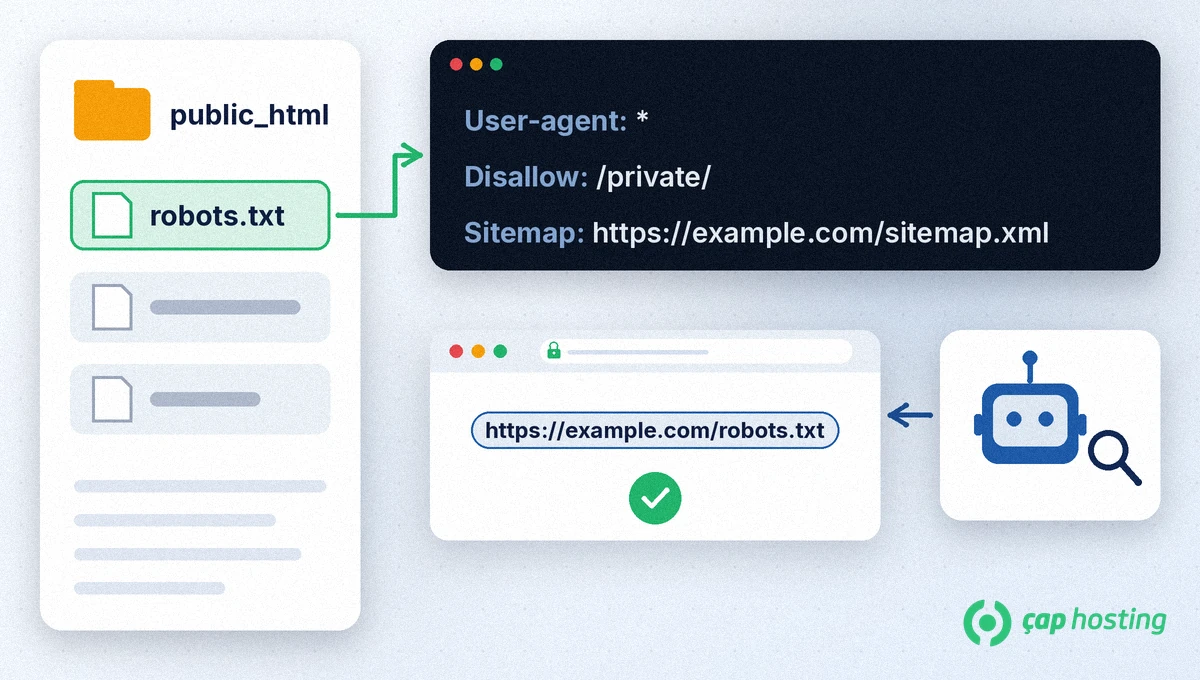
How to create robots.txt step by step

Create robots.txt: robots.txt in the public_html folder, User-agent, Disallow and Sitemap lines, checking example.com/robots.txt in a browser

  1. Open a plain text file: use a text editor such as Notepad, TextEdit or vi. Word processors are not suitable because they can add hidden characters. Choose UTF-8 encoding when saving.
  2. Write the rules: each group starts with a User-agent line. Below it, list paths that should not be crawled with Disallow and exceptions with Allow. Paths start with /; folders end with /.
  3. Add your sitemap: if you have one, put the full sitemap URL (with https://) in a Sitemap line.
  4. Upload the file to the root: save it as robots.txt in the public_html folder. For uploading via FTP see uploading your website via FTP; for the panel's file manager see our hosting control panel guide. A file in a subfolder (for example /pages/robots.txt) is ignored.
  5. Open it in a browser: open https://yourdomain.com/robots.txt in a private window; your rules should appear as plain text.
  6. Check it in Google: the robots.txt report in Search Console shows whether Google can read your file. If your site is not added yet, first complete Search Console domain verification.

Example robots.txt rules

A simple file that leaves the site open to all crawlers, blocks one folder and lists the sitemap:

User-agent: *
Disallow: /private/
Sitemap: https://example.com/sitemap.xml

If you do not want any restriction, you can leave the Disallow line empty or use only the Sitemap line. The line Disallow: / blocks crawling of the whole site; when a new site goes live, remember to remove this line if it was left over from the test environment.

Which pages make sense to block?

Google notes that robots.txt can be used to avoid overloading your server with requests and to reduce crawling of unimportant or very similar pages. On small and mid-sized sites this usually means addresses such as:

  • Internal search result pages and parameter URLs that repeat the same product list with different filters.
  • Cart, checkout steps and user-specific account pages that have no value in search.
  • Folders kept only for testing or development (these should also be password-protected).

To block a folder but allow a single page inside it, use an Allow line; for example, add Allow: /private/price-list.html below Disallow: /private/. Avoid blocking CSS and JavaScript files, because crawlers need them to understand how the page looks. Keep a copy of the file before adding a rule you are unsure about.

Common robots.txt mistakes

  • Wrong location: if the file is not in the root directory, crawlers cannot find it.
  • Subdomains: the rules apply only to the protocol, host and port where the file is posted. blog.yourdomain.com needs its own robots.txt.
  • Upper and lower case: rules are case-sensitive; /File.pdf and /file.pdf are different paths.
  • Using it to hide things: robots.txt is public; listing secret folder names there makes them visible.
  • WordPress's virtual file: if there is no real robots.txt in the root, WordPress generates default content for this URL itself. Once you upload your own file, the server delivers the real file.

For the full list of rules and details, see Google's guide Create a robots.txt file.

Frequently Asked Questions

Where do I upload the robots.txt file?

To the root directory of your site, so that it opens at https://yourdomain.com/robots.txt. In your hosting account this folder is usually public_html for the main domain.

Can I remove a page from Google with robots.txt?

No. robots.txt manages crawling and does not guarantee removal from the index. To keep a page out of search results, use a noindex tag or password-protect it.

Does every subdomain need its own robots.txt?

Yes. robots.txt applies only to the protocol, host and port where it is posted, so a subdomain needs a separate file in its own root directory.

How do I know my robots.txt file works?

First open the file in a private browser window. Then use the robots.txt report in Search Console to confirm that Google can read it.

Can't find the information you are looking for?

Create a Support Ticket
Did you find it useful?
(24 times viewed / 0 people found it helpful)

Powered by WISECP
Top