X
X
X
X

Knowledge Base

HomepageKnowledge BaseGeneralPing and Traceroute: How to Diagnos...

Ping and Traceroute: How to Diagnose Connection Problems Step by Step

In short: Ping and traceroute are the two basic commands for finding out where the problem is when you cannot reach a website or server. ping shows whether the target answers and how long the answer takes. traceroute (tracert on Windows) lists the intermediate points, or hops, that packets pass on the way to the target.
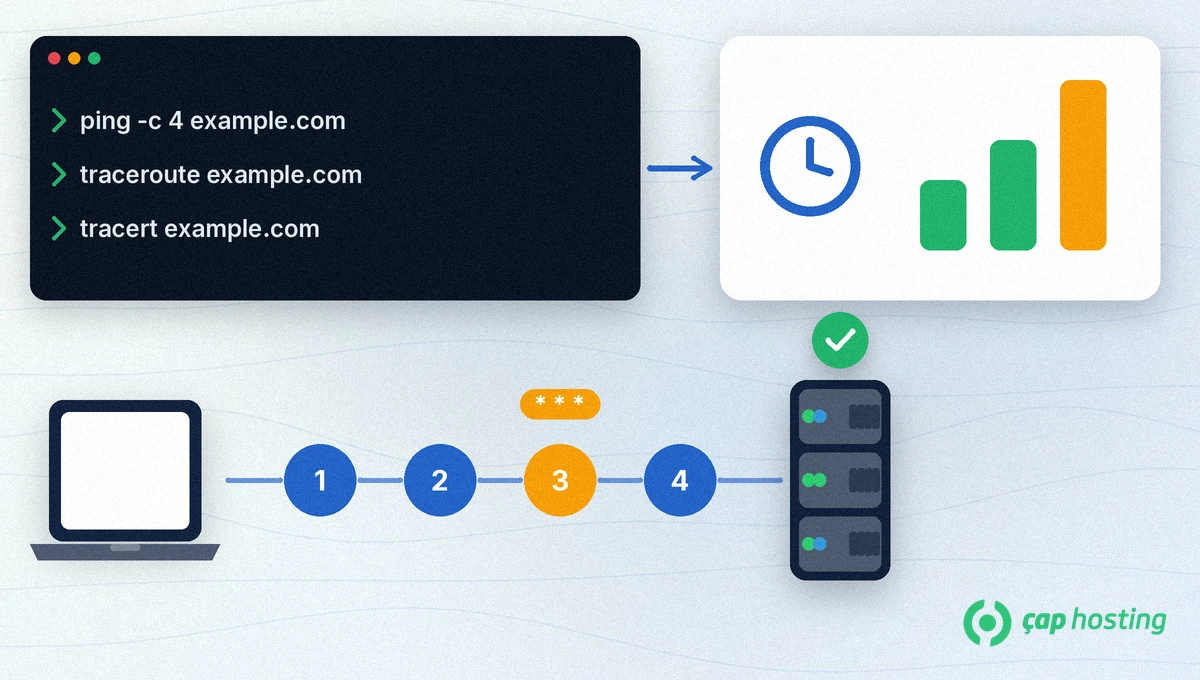
Ping and traceroute: terminal commands, a response-time card and the path to the server with a silent third hop

What do ping and traceroute do?

ping sends ICMP ECHO_REQUEST packets to the target and measures the replies. You see whether the target is reachable, how many milliseconds the reply takes and whether packets are lost. traceroute increases the packets' time to live (TTL) one step at a time so that every router on the path answers. On Linux it uses UDP packets by default; tracert on Windows sends ICMP echo requests.

How do you test a connection with ping?

  1. Try the domain name: on Linux or macOS, set the number of packets with -c. On Windows, ping sends 4 requests by default.
ping -c 4 example.com
  1. Read the result: if reply lines come back, the server is reachable over the network. The time= values show the response time and the summary line shows packet loss.
  2. If the name cannot be resolved: an "unknown host" or similar error means the problem is in DNS, not the network. Run a DNS check with dig and nslookup; if you have just moved the domain, DNS propagation may not be finished yet.
  3. Try the IP address directly: if the domain does not answer but the IP address does, the problem is again on the DNS side. To test a new server without changing DNS, use the hosts file test method.

An important note: some servers and firewalls do not answer ICMP packets. No reply to ping does not always mean the site is down; check it in the browser too. For the role of the firewall, see our article what is a firewall.

How do you find where the problem is with traceroute?

  1. Run the command: use traceroute on Linux and macOS and tracert on Windows:
traceroute example.com
tracert example.com
  1. Read the lines in order: each line is one hop. The first lines are usually your own modem and your internet provider, and the last line is the target server.
  2. Read the asterisks correctly: * * * on a line means that router did not answer in time. If later lines still appear, this is usually not a problem; that device simply does not answer this type of packet.
  3. Note where it stops: if no lines appear after a certain hop and the target is never reached, the problem is most likely at that point or just after it.
  4. Change the protocol if needed: if UDP packets are blocked on Linux, try ICMP with traceroute -I or TCP with traceroute -T. These options usually need administrator rights.

Which signs should you look for in the results?

  • Packet loss: if the loss rate in the ping summary is above zero, the connection is unstable. Repeat the command a few minutes apart; whether the loss is constant or occasional helps narrow down the cause.
  • Fluctuating times: if response times jump up and down, there may be congestion somewhere on the path. Running the same test over a wired connection shows whether the problem is your own wireless network.
  • Hop limit: on Linux, traceroute sets the maximum number of hops with -m; on Windows, tracert uses /h. If the target is far away you can raise this limit.
  • Testing from another network: also run the test from a different connection, such as your phone's mobile data. If the problem only appears on one network, that network is most likely the source.

How should you share the results with support?

If the problem continues, copy the ping and traceroute output as text and add the date and time you ran the commands, your own connection (office, home, mobile) and the target address. With this information, a support ticket can be investigated much faster. If the site opens but is slow, the server or application side is more likely than the network; our guide why is my website slow helps with that.

Frequently Asked Questions

If ping does not answer, is the site down?

Not always. Some servers and firewalls block ICMP. Try to open the site in a browser and use traceroute to see where the path stops.

What does * * * mean in traceroute?

The device at that hop did not answer within the wait time. If later hops still appear, this is usually normal.

There is no traceroute command on Windows. What should I use?

On Windows the tracert command does the same job. Type tracert followed by the domain name in the command prompt.

If the ping time is high, is the server the problem?

It can be, but ping alone does not prove it. Use traceroute to see from which hop the time starts to rise; the increase may start on your own connection.

Can't find the information you are looking for?

Create a Support Ticket
Did you find it useful?
(6 times viewed / 0 people found it helpful)

Powered by WISECP
Top