In short: systemctl commands let you manage services on Linux servers that use systemd. sudo systemctl restart nginx restarts a service, systemctl status nginx shows its state and its latest log lines, and sudo systemctl enable --now nginx starts the service and sets it to start automatically at boot. For a service's logs, use journalctl -u nginx.
systemctl is the command-line tool of systemd, the service manager used by current distributions such as Ubuntu, Debian, AlmaLinux and Rocky Linux. Background programs such as a web server, a database or SSH are defined in systemd as services (service units). You run the commands after connecting to your server over SSH. Commands that start, stop or reconfigure a service need administrator rights, so they are prefixed with sudo. Service names can differ between distributions; Apache, for example, runs as apache2 on Ubuntu and as httpd on AlmaLinux.
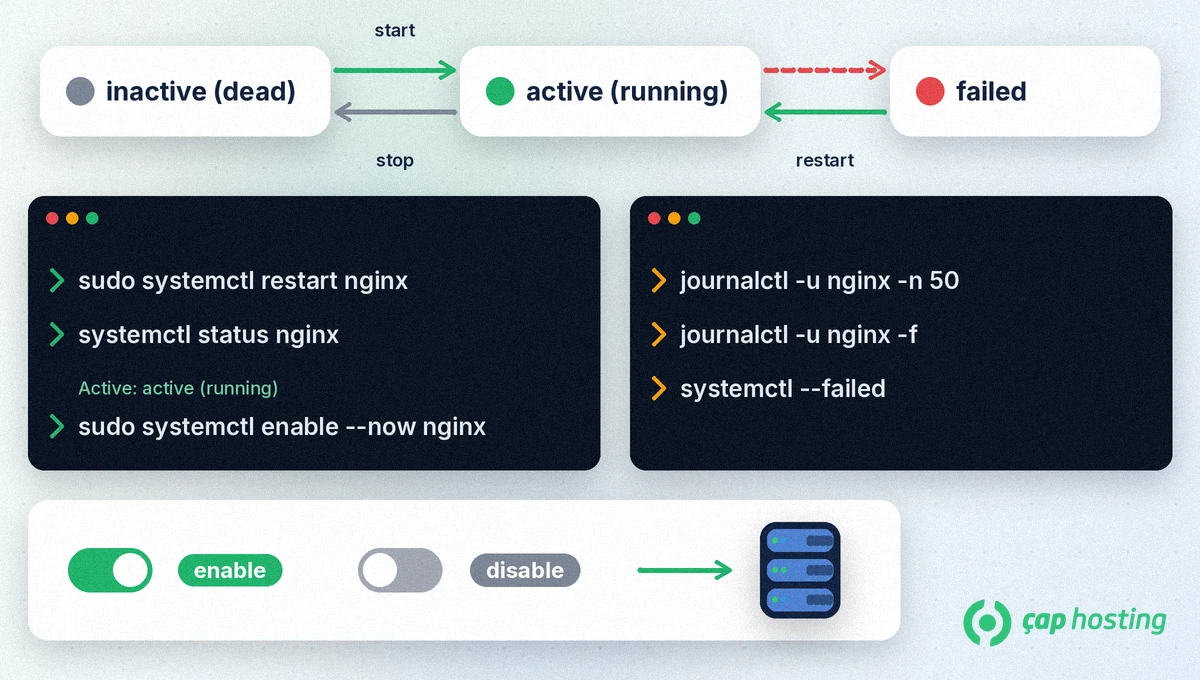
The examples below use nginx as the service name; replace it with your own service. All options are listed in the systemctl manual page.
| Command | What it does |
|---|---|
sudo systemctl start nginx | Starts the service |
sudo systemctl stop nginx | Stops the service |
sudo systemctl restart nginx | Stops and starts the service again |
sudo systemctl reload nginx | If the service supports it, rereads its configuration without stopping the service |
systemctl status nginx | Shows the state and the latest log lines |
sudo systemctl enable nginx | Makes the service start automatically at boot |
sudo systemctl enable --now nginx | Enables start at boot and starts the service right away |
sudo systemctl disable nginx | Turns off starting at boot |
systemctl is-active nginx | Gives a short answer: is the service running? |
systemctl is-enabled nginx | Gives a short answer: is it set to start at boot? |
systemctl --failed | Lists all units in a failed state |
The key line in the output of systemctl status nginx is the Active: line. active (running) means the service is running, inactive (dead) means it was stopped, and failed means it exited with an error. Below that, the output shows the latest log lines of the service, which often hold the clue to the problem. If the output does not fit on the screen, it opens in a pager; scroll with the arrow keys and press q to exit.
For more log lines, use journalctl:
journalctl -u nginx -n 50: the last 50 log lines of the service.journalctl -u nginx -f: follows new log lines live; press Ctrl+C to exit.journalctl -u nginx --since today: only today's entries.journalctl -u nginx -p err: only entries at error level or more severe.journalctl -b -u nginx: entries since the server last booted.If your site is down but you can still reach the server over SSH, checking the web server, PHP and database services first quickly shows which layer has the problem. Work through these steps:
systemctl --failed.systemctl status <service>.journalctl -u <service> -n 50.sudo systemctl restart <service> and check the status again.systemctl is-enabled <service>. If the problem persists or the disk or memory is full, check resource usage or open a support ticket.sudo systemctl daemon-reload, then restart the service.systemctl mask makes a service impossible to start, even by hand. Do not use it by accident; you need unmask to undo it.restart stops the service completely and starts it again, which can cause a short interruption. reload only rereads the configuration if the service supports it. If it does not, use restart.
The service may not be enabled to start at boot. Check with systemctl is-enabled; if the answer is disabled, run sudo systemctl enable.
They work on distributions that use systemd. Current releases of Ubuntu, Debian, AlmaLinux and Rocky Linux all use systemd.
 Copyright © 2026 All Rights Reserved

 Turkey (Türkçe)
 Worldwide (English)