In short: WordPress user roles are ready-made permission sets that decide what each person who logs in to your site can do. A single site has five default roles: Administrator, Editor, Author, Contributor and Subscriber. The safe rule is simple: give everyone the lowest role that lets them do their job, and keep Administrator accounts to the one or two people who actually run the site.
It is tempting to create a quick "admin" account for an agency, an intern or a guest writer. But every Administrator account is a key that can install plugins, add users and change site settings. This article explains the differences between the roles, who should get which one and how to change a role step by step.
In WordPress, a role is a set of capabilities assigned to a user. "Publish posts", "moderate comments" and "edit users" are capabilities; a role bundles them together. According to the Roles and Capabilities documentation on WordPress.org, WordPress comes with six pre-defined roles: Super Admin, Administrator, Editor, Author, Contributor and Subscriber. Super Admin only exists in Multisite networks, where several sites run from one installation; on a single site, Administrator is the most powerful role.
The documentation makes one important point: roles are not a seniority ladder, they describe the user's responsibilities on the site. It is perfectly normal for the managing director to be an Editor on the site while the technical lead is the Administrator.
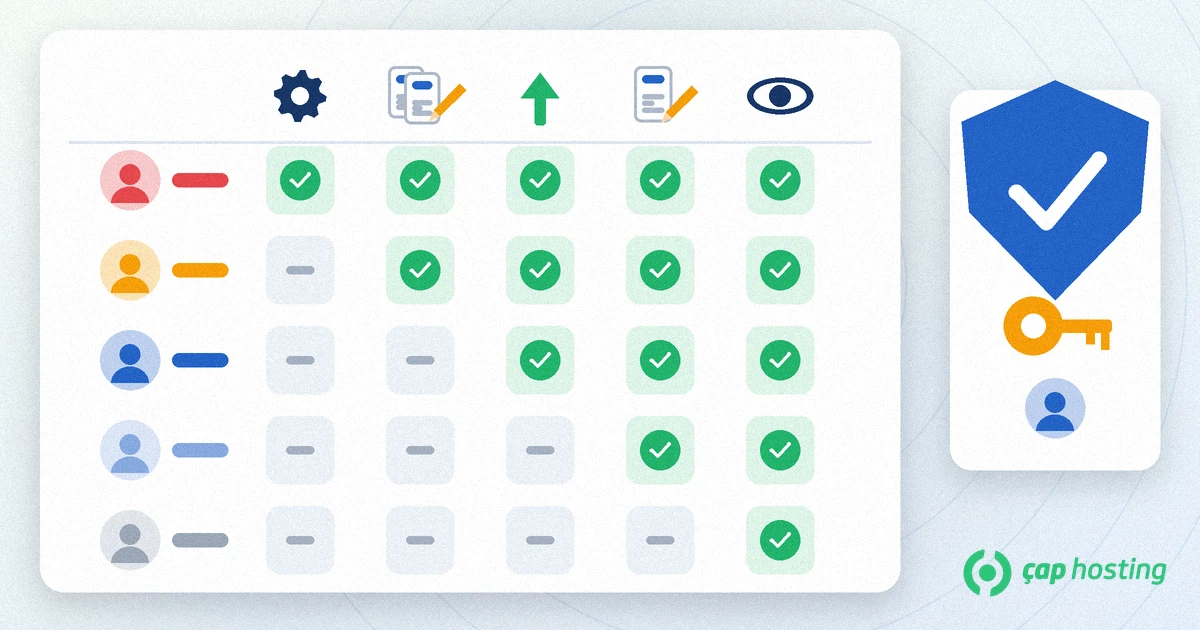
The table summarises WordPress's default capabilities for each role:
| Role | What it can do | Who it suits |
|---|---|---|
| Administrator | All administration on the site: install plugins and themes, add users, change settings | The one or two people who run the site technically |
| Editor | Publish, edit and delete their own and other users' posts; moderate comments; manage categories; upload files | The person responsible for content or a team lead |
| Author | Write, publish, edit and delete their own posts; upload files | An employee who publishes regularly |
| Contributor | Write and edit their own posts; cannot publish and cannot upload files by default | Guest writers, interns, content that needs approval |
| Subscriber | Only read content and manage their own profile | Readers of members-only content |
Two details stand out. A Contributor can write but not publish; their post goes live only after an Editor or Administrator approves it. An Editor, on a single site, can also post unfiltered HTML, which means they can add script code to pages. So give the Editor role only to people you trust.
Pick the role based on what the person will actually do on the site. A practical mapping:
Some plugins, such as e-commerce or membership plugins, add roles of their own. When you install a new plugin, check the roles and capabilities it adds as well; our article on how to choose WordPress plugins covers what to check before installing.
You need to be logged in to the WordPress dashboard as an Administrator to assign roles:
When you set up a new site, an Administrator account is created automatically during installation; see our WordPress installation guide for the steps.
If an Editor's or Author's password is stolen, the attacker can at most tamper with content. If an Administrator account is taken over, the attacker can install a malicious plugin, create new admin accounts and control the whole site. Fewer administrators means a directly smaller attack surface.
Build these habits for regular checks:
Role management is one part of a wider security routine; for the other steps, see our WordPress security checklist.
WordPress user roles keep your site organised and secure by deciding who can do what. Limit the Administrator role to one or two people, give your content team Editor or Author, give guest writers Contributor and review the list regularly. If you need help with accounts or access on your WordPress site at ÇAP Hosting, open a support ticket.
A single WordPress site has five default roles: Administrator, Editor, Author, Contributor and Subscriber. Multisite networks, where several sites run from one installation, add Super Admin. Plugins can add roles of their own.
An Author can only publish and edit their own posts. An Editor can also publish, edit and delete other users' posts, moderate comments and manage categories.
The Contributor role is deliberately designed without publishing rights. A Contributor writes a post and submits it for review; an Editor or Administrator then publishes it. By default a Contributor cannot upload files either.
If they need to work on plugins or themes, a temporary Administrator account is acceptable. Give the agency its own account, do not share passwords and lower the role or delete the account when the work is done.
 Copyright © 2026 All Rights Reserved

 Turkey (Türkçe)
 Worldwide (English)