In short: To update PHP version means moving your site from its current PHP branch to a newer branch that is still supported. According to the official PHP schedule, security support for PHP 8.2 ends on 31 December 2026. The safe order is: take a full backup, try the change on a staging copy if you can, update WordPress core, plugins and theme, switch to the new PHP version, test the site and watch the error log for a few days.
PHP is the server-side language that WordPress and many other web applications run on. Every PHP branch gets two years of active support after its release, with bug fixes and security patches. For the next two years it only receives security fixes. After those four years the branch reaches end of life and gets no more patches at all (PHP supported versions).
A site on an unsupported version usually keeps working; the problem is that when a new security hole is found, no fix is released for it. Plugin and theme developers also drop support for old versions over time. That is why treating a PHP update as planned maintenance, instead of a last-minute job, carries less risk.
According to the table on php.net (as of November 2026), the support dates are:
PHP 8.1 and older are no longer on the supported list. On the WordPress side, the official requirements page recommends PHP 8.3 or greater. WordPress can also run on legacy versions from PHP 7.4 upwards, but the page notes that these have reached end of life and may leave your site exposed to security vulnerabilities (WordPress requirements).
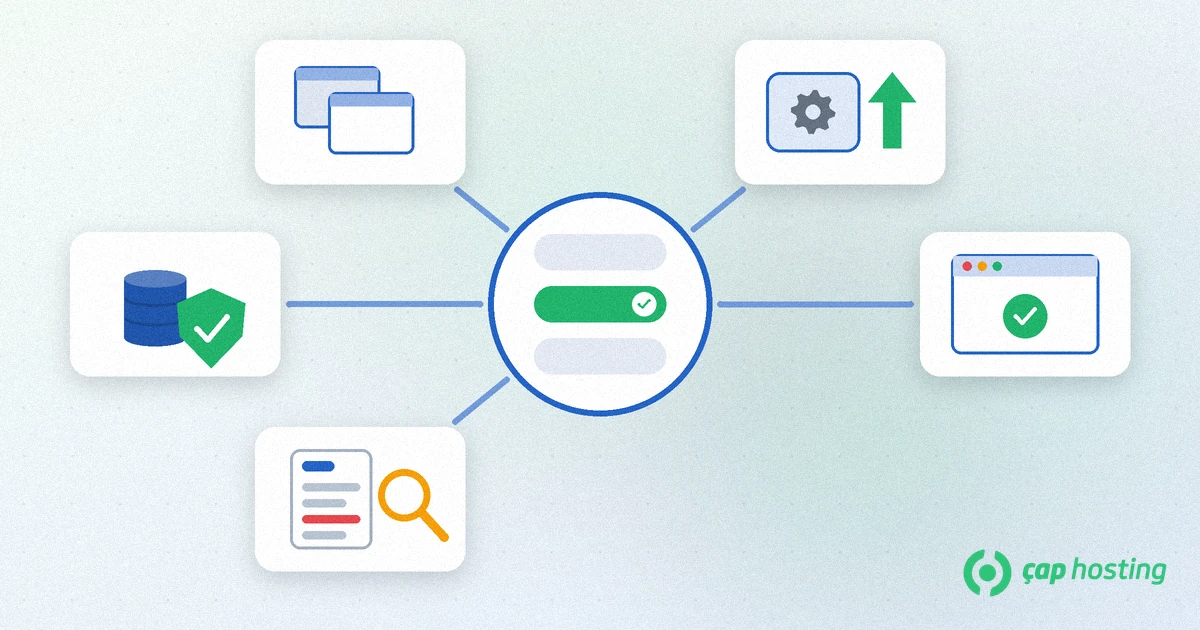
A setup that runs cleanly on staging will most likely run cleanly on the live site, but it is worth checking parts such as caching and scheduled tasks on the live site separately.
If a fatal error occurs on the new PHP version, WordPress may show a "critical error" message and send a recovery link to the admin e-mail address. First use the error log to find which plugin or theme causes it; the steps are in our WordPress critical error guide.
If you cannot fix it right away, switching back to the previous PHP version for a short time and trying again after updating the plugin is a sensible route. It is only a temporary fix, though: once that version loses support you will need to make the same move. Not leaving it to the end of the schedule gives you time to fix problems when they appear.
The general rule is to choose the newest stable branch that your theme and plugins support. Since WordPress recommends PHP 8.3 or greater, 8.3 or 8.4 is a reasonable target for most up-to-date WordPress sites. Before moving to the newest branch, check the pages of your critical plugins for a compatibility note for that version. If you run several sites, move the simplest one first and continue with the others once you have seen the results.
No, the site usually keeps working. But after 31 December 2026 no security patches are released for this branch, so newly found vulnerabilities stay open.
Usually not. The main risk is compatibility rather than speed; an old or abandoned plugin may throw errors on the new version. That is why you back up and test first.
On WordPress, look at the Server section in the Info tab of Tools > Site Health. If you are not sure, ask your hosting support.
Use the error log to find the faulty plugin or theme, then update or disable it. If it cannot be fixed quickly, switch back to the previous version for a short time and fix the issue on a staging copy.
 Copyright © 2026 All Rights Reserved

 Turkey (Türkçe)
 Worldwide (English)