In short: A WordPress critical error means WordPress could not load your site and shows "There has been a critical error on this website". The cause is almost always a fatal PHP error, usually from a plugin, a theme, an interrupted update or a PHP version that does not match. Work through it in this order: check your backup, try the recovery link in the admin email, find the culprit in the error log, disable the plugin or theme and, if that fails, restore a backup.
Since WordPress 5.2, a fatal PHP error shows a warning page instead of a blank white screen. At the same time WordPress emails the site administrator the reason and a recovery mode link. Recovery mode does not fix anything by itself. It only pauses the faulty plugin or theme for your browser so you can log in and repair the problem (WordPress Recovery Mode documentation).
Visitors keep seeing the error page until you resolve it, so the goal is to find the cause quickly and reopen the site with a step you can undo.
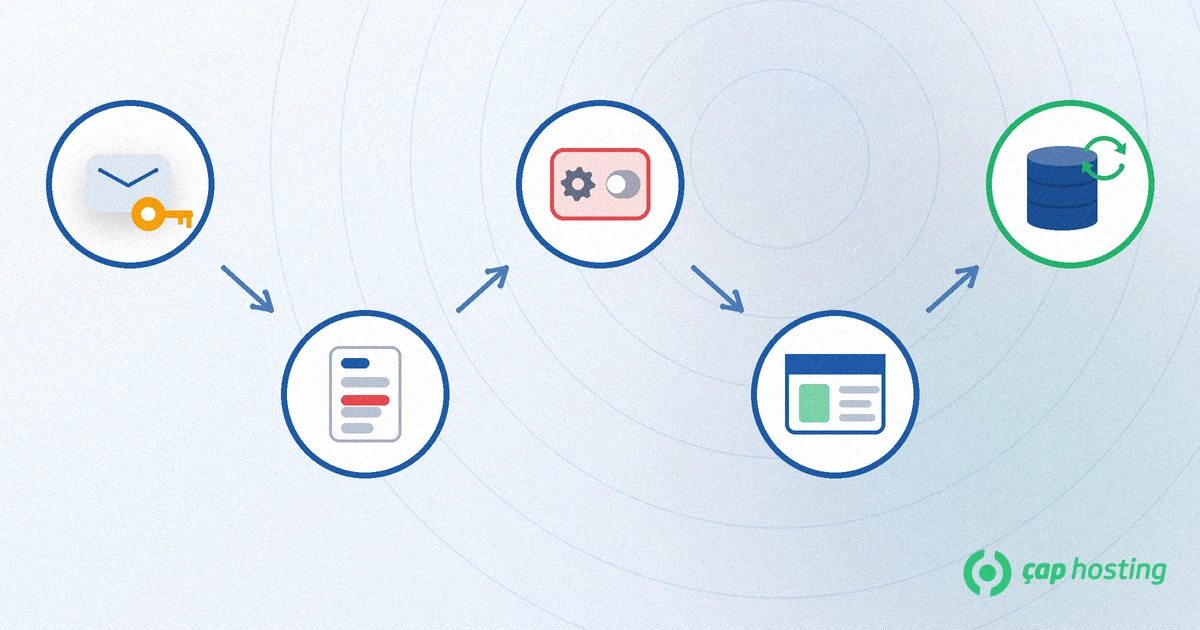
Reading the error log is much faster than guessing which one it is. The steps below work in this order.
Before changing any file, confirm that a recent full backup exists. In the worst case you restore the site from it. For a backup routine, see our website backup guide.
WordPress may have sent an email titled "Your Site is Experiencing a Technical Issue" to the administrator address (the one under Settings → General). Check the inbox and the spam folder, click the link and log in. The dashboard then shows a notice that the faulty plugin or theme has been paused. Deactivate, update or delete it and click "Exit Recovery Mode" in the admin bar. If no email arrived, opening /wp-admin/ once may start recovery mode, but this is not guaranteed. If the error did not happen on an admin page, no email may have been sent at all; in that case continue with the next step.
Open wp-config.php with your file manager or FTP (see our guide to uploading a website via FTP). According to the WordPress debugging documentation, if you add the following lines before the line that says /* That's all, stop editing! */, errors are written to wp-content/debug.log instead of being shown on screen (Debugging in WordPress):
define( 'WP_DEBUG', true );
define( 'WP_DEBUG_LOG', true );
define( 'WP_DEBUG_DISPLAY', false );
Load the site once, then look at the last "Fatal error" line in debug.log. It usually contains a file path: wp-content/plugins/plugin-name/... points to a plugin and wp-content/themes/theme-name/... points to a theme. When the problem is solved, remove these lines or set them to false; do not leave debugging on for a live site.
If you cannot reach the dashboard, open wp-content/plugins/ over FTP and rename the folder of the plugin named in the log (for example, add -off to the end). When the folder cannot be found, WordPress deactivates the plugin. If you do not know which plugin it is, temporarily rename the whole plugins folder to plugins-off; if the site opens, the problem is in a plugin. Rename the folder back and activate the plugins one by one from the dashboard to find the culprit.
If the log points to the theme, rename the active theme's folder inside wp-content/themes/. If a default WordPress theme (such as a Twenty Twenty-series theme) is installed, WordPress falls back to it. If none is installed, upload one over FTP first.
If the log shows a function that no longer exists in a newer version, or a memory error, switch the PHP version in your hosting panel to one your plugin supports, or talk to your support team about raising the memory limit. Check the supported versions on the plugin's description page rather than guessing.
If the issue persists after you have ruled out plugins and the theme, restore the backup from before the error. Take a separate copy of the current files and database first. Restoring can lose data, so note any orders or comments that arrived after the last backup.
To read more about how recovery mode works, see the WordPress core team's 5.2 announcement.
No. In most cases the site only fails to load because a plugin or theme cannot run, and your content is still in the database. Still, take a backup before changing files.
Check the spam folder and the administrator email under Settings → General. If nothing comes, open the error log and rename the plugins folder as described above.
The last Fatal error line in the debug log (wp-content/debug.log) gives the path of the file. The plugins or themes folder name in that path shows which component is at fault.
Yes. Renaming the plugin folder deactivates it. Rename it back to restore it and then activate it again from the dashboard.
Yes. Turn WP_DEBUG off once the problem is solved; leaving debugging on is not recommended on a live site.
 Copyright © 2026 All Rights Reserved

 Turkey (Türkçe)
 Worldwide (English)