In short: WordPress speed optimization hosting work is more than theme tweaks: without the right PHP version, OPcache, page and object cache, SSD storage and — when needed — a CDN, you rarely see a measurable gain. This guide covers the hosting-side steps, how to measure them, and a practical checklist.
Every WordPress request runs PHP, hits the database and reads theme or plugin files from disk. Front-end compression helps, but if CPU, memory, disk I/O or caching are weak, the page still feels slow. We cover general slowdowns in why your website is slow; here the focus is the hosting layer.
Measure under the same conditions before and after each change. Watch at least these three signals:
WordPress's official advanced administration performance guide also covers persistent object caching, OPcache and load testing — the steps below align with that guidance.
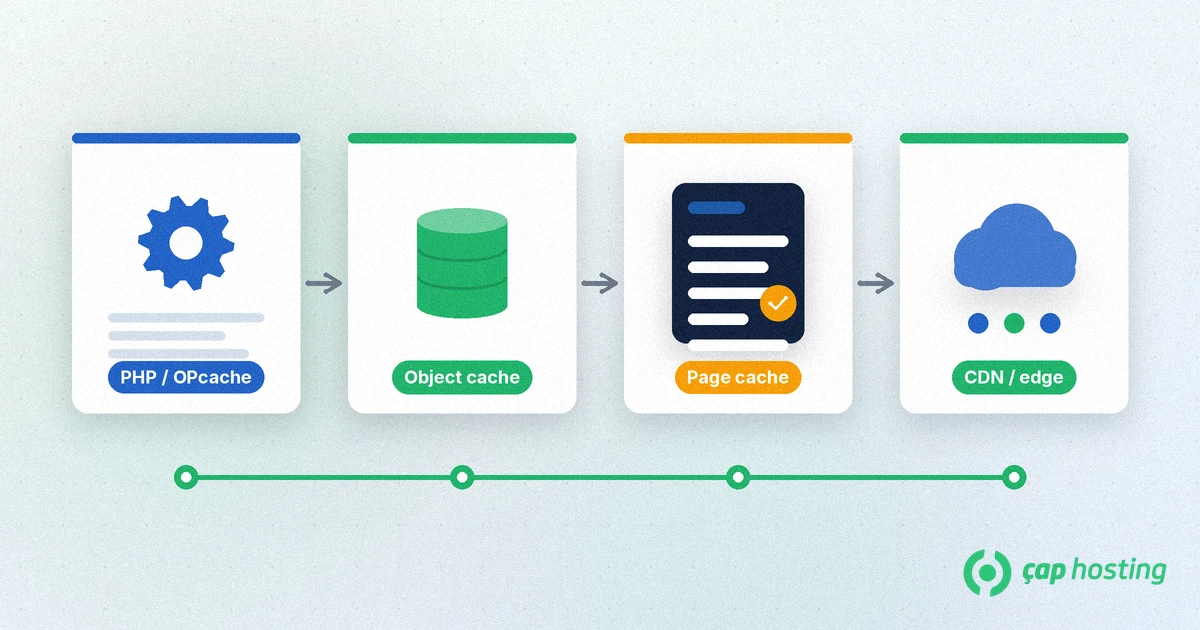
Moving to the newest stable PHP version WordPress supports often speeds a site up with no other software. Check plugin compatibility first and smoke-test on a staging copy or after a backup. You can usually pick the PHP version per domain in the CWP control panel.
OPcache keeps compiled PHP bytecode in memory so files are not recompiled on every request. Most modern hosts enable it by default. On a self-managed VPS, confirm opcache.enable=1 and give it enough memory. With OPcache off, other WordPress speed optimization hosting work stays capped.
Serving cached HTML for anonymous visitors cuts PHP and MySQL load sharply. Use one server-side layer (Nginx FastCGI cache, LiteSpeed Cache, and similar) or one solid WordPress cache plugin — not both fighting each other. Exclude carts, account areas and nonce-protected pages.
WordPress can store options, transients and query results in an object cache. A Redis or Memcached backend especially helps WooCommerce and membership sites. If your plan does not include it, it is installed on a VPS; on shared hosting, ask support whether the feature is available.
The media library, plugin updates and database files all depend on disk I/O. An SSD or NVMe web hosting plan has far lower latency than spinning disks. As traffic or plugins grow, watch CPU and RAM ceilings — cache cannot hide constant resource saturation.
Serving CSS, JS and images from an edge node closer to visitors shortens latency beyond TTFB and lowers origin bandwidth. HTTPS with HTTP/2 is required for modern browser parallelism; SSL is standard on most hosting plans.
Expired transients, spam comments and unused plugins cost disk and queries. Maintain the database and delete plugins you do not use. Brute-force and unused XML-RPC traffic also burn CPU — see our WordPress XML-RPC guide.
These hosting mistakes show up often during WordPress speed optimization:
After clearing those mistakes, apply changes in small steps: PHP and OPcache first, then page cache, then object cache and CDN. Re-measure TTFB after each step so you know which layer actually helped. On busy WooCommerce or membership sites, object cache is often the second-largest win after page cache.
ÇAP Hosting hosting plans include SSD infrastructure and the CWP panel. Browse WordPress setup topics in our knowledge base and articles category. If you are unsure which layer to enable first, contact us.
Measure TTFB first. High TTFB usually points to PHP, cache or resource limits; low TTFB with a poor LCP points to images and the theme.
No. OPcache stores PHP bytecode in memory; page cache stores the finished HTML. They work on different layers and complement each other.
It depends on the plan. Many shared plans omit persistent object cache; it is typically available on VPS or plans that list the feature.
Not directly. A CDN brings static files closer. Cutting database and PHP time needs page/object cache and enough server resources.
 Copyright © 2026 All Rights Reserved

 Turkey (Türkçe)
 Worldwide (English)